¶ Building the storage pool
The Storage pool tab lists the nodes of the pool, their identifier and their connection state. A single node is already a pool of one.
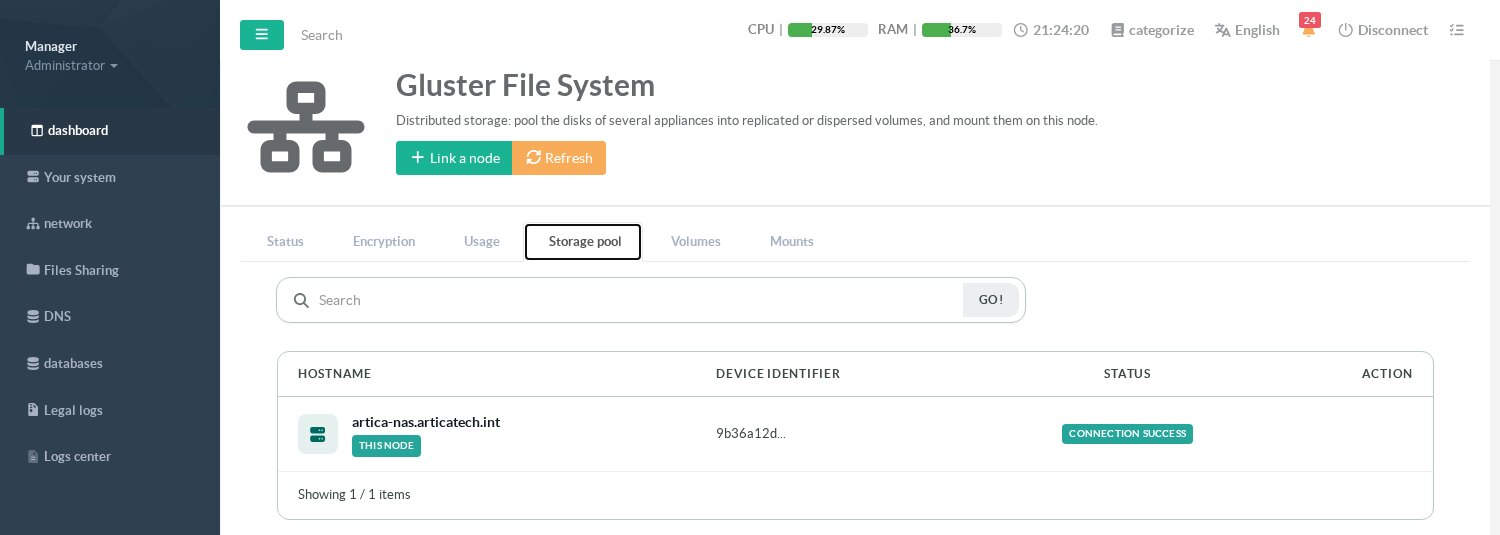
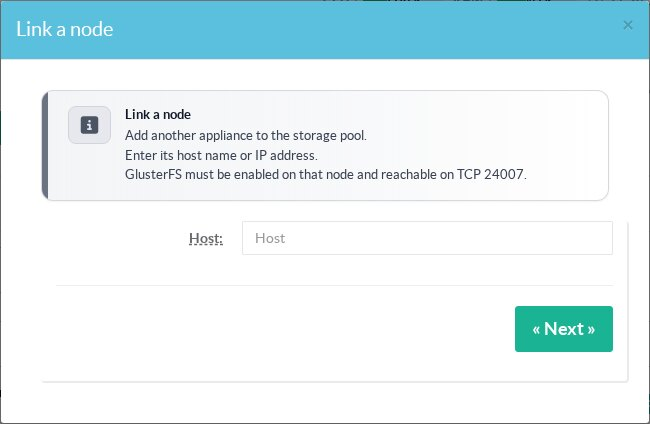
To add an appliance, click Link a node and type its host name or IP address. GlusterFS must be installed and enabled on that node, and TCP 24007 must be reachable. Artica checks the node first, then links it; the firewall of every node is updated automatically.
A node can be detached when none of its bricks is used by a volume. A node that is lost for good (dead hardware) can be detached with the dead node action, which is only offered while it is disconnected.
¶ Other pages of this guide
- Installation and activation
Requirements, installation, activation, firewall and client networks, backup, stopping and disabling GlusterFS on an Artica appliance. - Storage pool
Link Artica appliances into a GlusterFS storage pool, check their connection state and detach a node. - Volumes
Create a GlusterFS volume with the wizard, list volumes, change volume options and rebalance a volume after adding bricks. - Disks and bricks
Prepare XFS disks, add, remove and replace the bricks of a GlusterFS volume, and follow the self-heal. - Mounting volumes
Mount a GlusterFS volume on an Artica appliance with persistent mounts, backup volfile servers and mount options. - Encryption (TLS)
Encrypt GlusterFS management and data traffic with a pool certificate authority managed by Artica, and issue certificates for external clients. - Monitoring, alerts and troubleshooting
Usage charts, space, brick and self-heal alerts of GlusterFS volumes, and troubleshooting.