Firewall rules describe which traffic is accepted, rejected, logged, marked or redirected on an interface.
They are managed in Your Firewall › Firewall Rules and applied automatically a few seconds after each change.
¶ The rules table
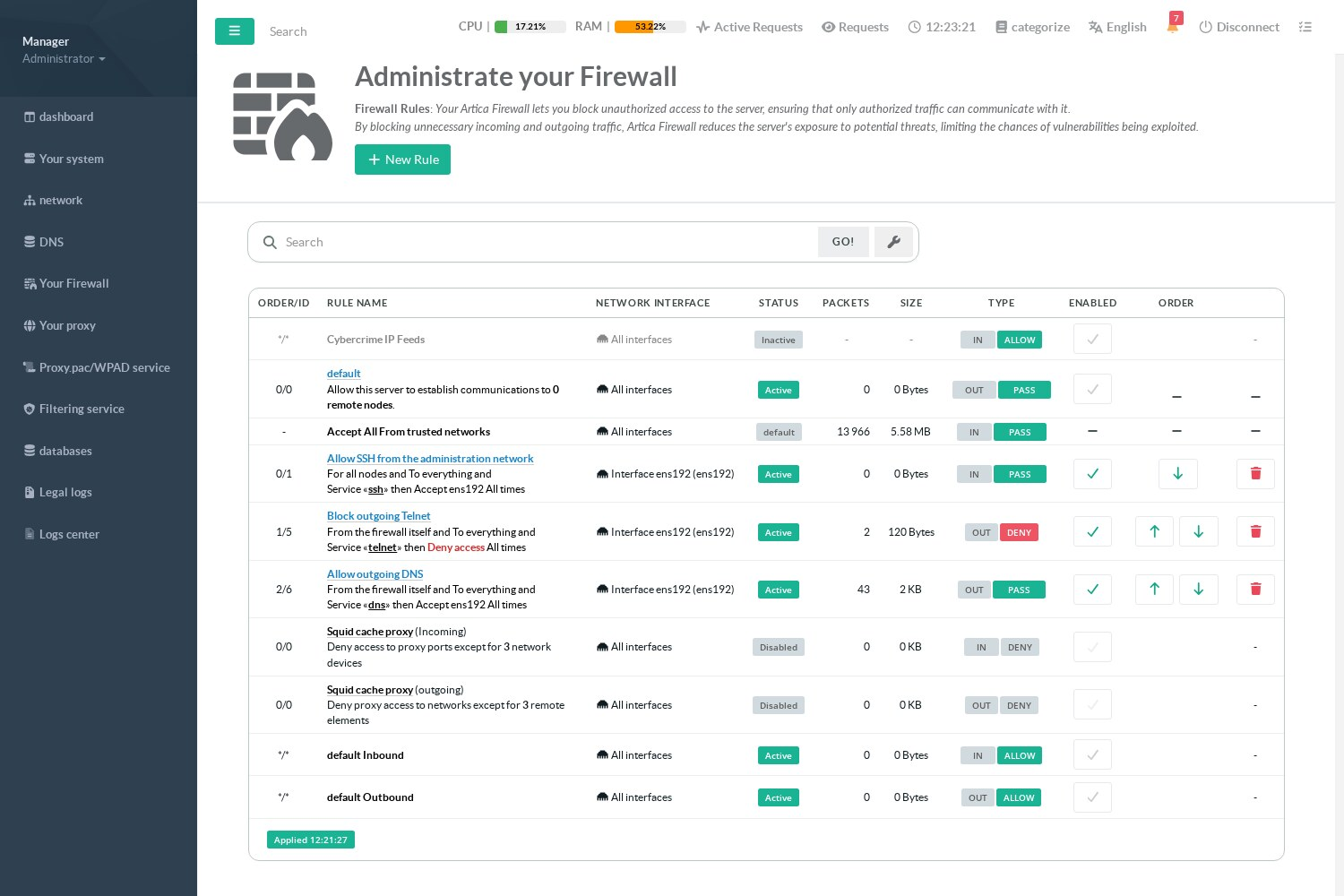
| Column | Meaning |
|---|---|
| Order/ID | Position of the rule in its interface, and its identifier. |
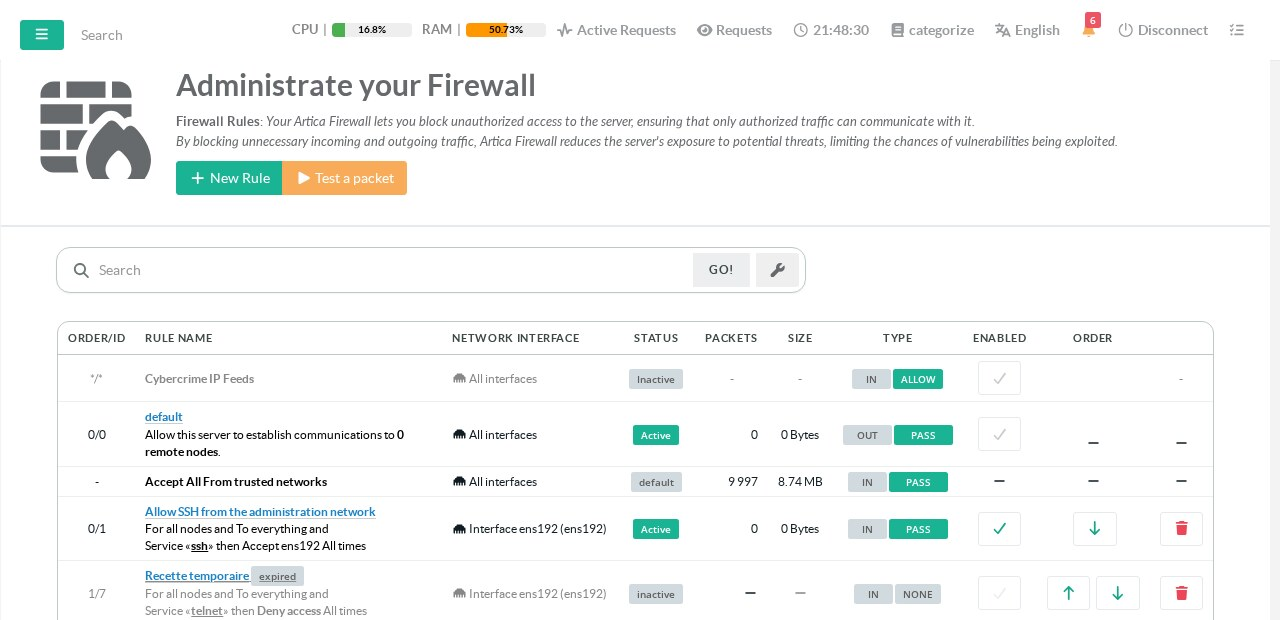
| Rule name | Click it to edit the rule. Below the name, a sentence summarizes what the rule does (sources, destinations, services, action, time), followed by its description and its Last used information. A label IPv4 or IPv6 marks a rule limited to one IP version, a gauge icon a rule with connection limits. An orange label in front of the name means the rule cannot be applied, with the reason (for example This network interface is excluded from the firewall). |
| Network interface | The interface whose traffic the rule filters, or All interfaces. |
| Status | Active: the rule is in the kernel. Inactive: enabled but not in the kernel (see the orange label). Disabled: switched off. |
| Packets / Size | Packets and bytes that matched the rule since it was last applied, summed over all the kernel lines the rule produced (IPv4 and IPv6). |
| Type | Direction (IN for traffic reaching the interface, OUT for traffic leaving it) and action. |
| Enabled / Order | Switch the rule on or off; move it up or down; delete it. |
The badge at the bottom of the table shows when the rules were last applied, or how many rules the kernel refused (click it to see the errors). See How the firewall applies your rules.
¶ Built-in lines
Some lines are not rules you created; they show what Artica adds automatically:
- Cybercrime IP Feeds: blocks the addresses of the cybercrime feeds when that feature is enabled.
- default — Allow this server to establish communications to N remote nodes: the published servers the appliance must always reach.
- Accept All From trusted networks: the trusted networks are accepted before any rule (see the order of protection rules).
- Squid cache proxy (incoming / outgoing): the dedicated rules for the proxy service.
- default Inbound / default Outbound: the policy of the interfaces that are not linked to the firewall, with their counters.
¶ Create a rule
Click New Rule:
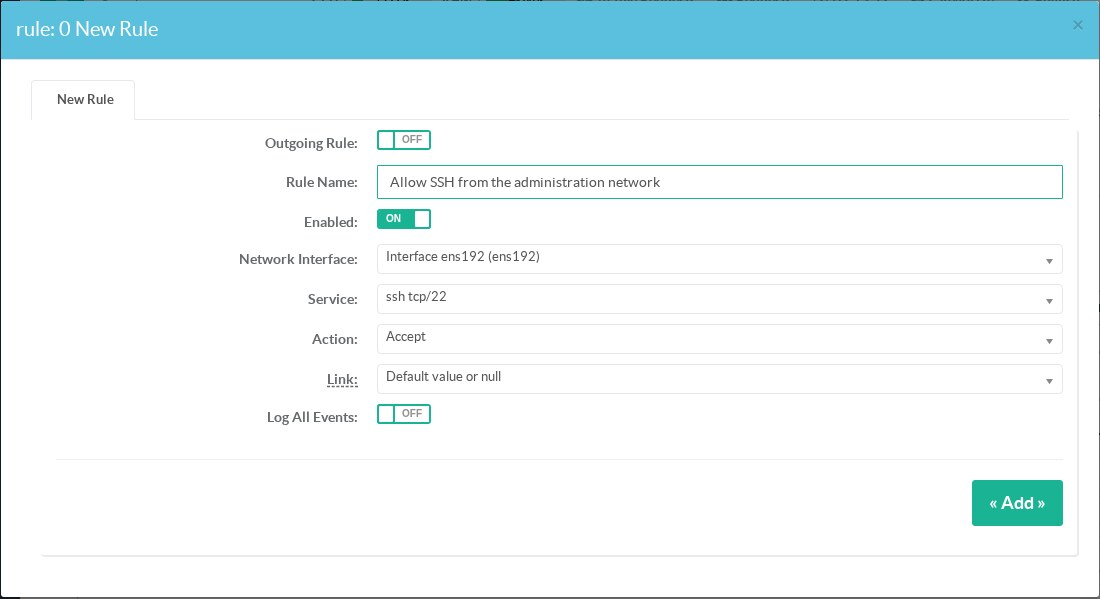
| Field | Meaning |
|---|---|
| Outgoing Rule | Checked: the rule filters traffic leaving the interface (to the network). Unchecked: traffic reaching the interface. |
| Rule Name | A name that explains the purpose of the rule. |
| Description | Free text (500 characters at most): why the rule exists, who asked for it, a ticket number. It is shown under the rule name and searched by the search box. |
| Section | A label used to group rules in the list (see Sections). It does not change the evaluation order. |
| IP version | IPv4 + IPv6 (default), IPv4 only or IPv6 only. See IPv6 filtering. |
| Network Interface | The interface concerned, or All interfaces. The interface must be linked to the firewall. |
| Service | A protocol and port set (ssh, https, dns…). Leave the default value to match every protocol. More services can be added in the Firewall services tab. |
| Action | What to do with the matching traffic, see below. |
| Link | Only for the action Send through a link: the link of the link balancer. |
| Log All Events | Logs every packet that matches the rule, before applying the action (at most 1 line per second, bursts of 5). |
¶ Actions
| Action | Effect |
|---|---|
| Drop | Rejects the traffic: the sender receives a TCP reset or an ICMP "unreachable", which is faster to diagnose than a silent drop. Each rejection is logged with the name of the rule (prefix ARTICA:REJECT:<rule id>:, at most 1 line per second) and appears in the firewall events. |
| Accept | Accepts the traffic; the following rules are not evaluated. |
| Tproxy method (transparent proxy) | Sends the matching web traffic to the local proxy without any client setting. |
| Mark packets | Marks the packets (mark set in the options tab) so that they follow a dedicated routing table, for example to leave through another gateway. |
| Forward to another gateway (next hop) | Routes the matching traffic to another gateway instead of the default one. |
| Duplicate traffic | Sends a copy of the traffic to a target address. See MIRROR. |
| Log only | Logs the packets with the prefix ARTICA:LOG:<rule id>: and lets them continue to the next rules. Useful to observe a flow before blocking it. |
| Stop checking the rules of this interface | Stops evaluating the rules of the interface for this traffic: the default policy of the interface is not applied, and the packet goes back to the main chain, where it is accepted unless another module blocks it. |
| Send through a link | Sends the traffic through a chosen Internet link of the link balancer. |
Click Add. The rule appears in the table and is applied a few seconds later.
¶ Connection limits
An Accept rule can limit what each source address is allowed to open — for example to protect an SSH or a mail service against a client that opens connections in a loop:
- Simultaneous connections per source: beyond this number, new connections are refused (TCP reset).
- New connections per source, per second or per minute: beyond this rate, new connections are silently dropped.
0 means no limit. Limits are not available on the other actions, nor on NAT and masquerade rules. With Log All Events, each refusal is logged and shown as LIMIT in the events. Refusals by a limit also count for the automatic blocking.
¶ Refine a rule
Click the name of a rule to open it. The window has several tabs:
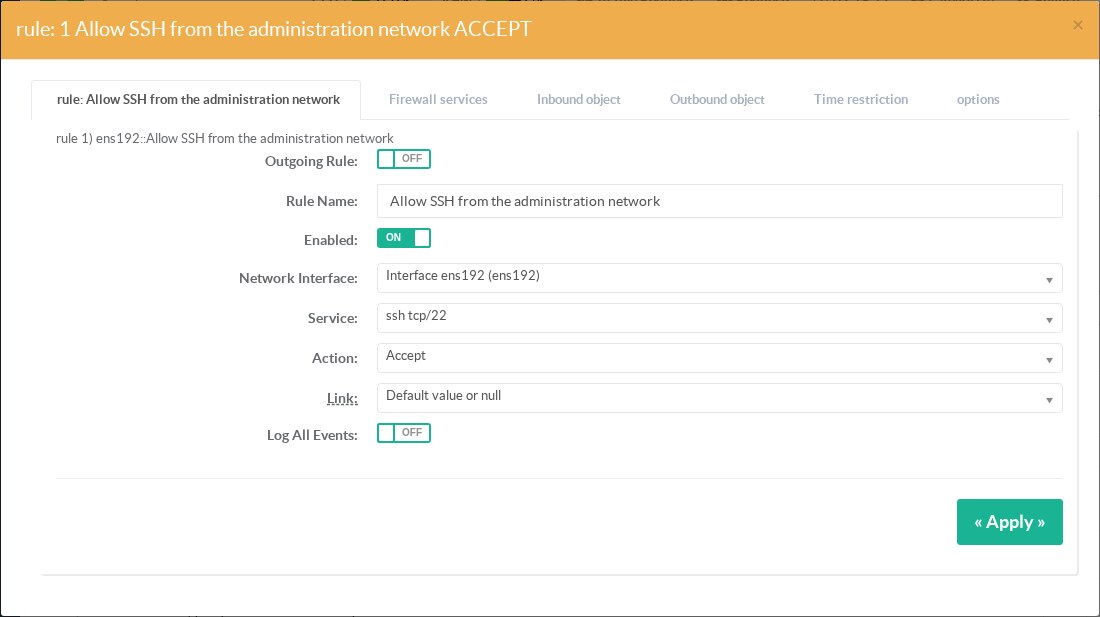
- rule: the fields of the creation form.
- Firewall services: add several services to the rule (for example http, https and ssh at once).
- Inbound object: restrict the rule to sources — addresses, networks, countries, DNS names, MAC addresses — through firewall objects.
- Outbound object: restrict the rule to destinations, in the same way.
- Time restriction: apply the rule only on some days and between two times.
- options: settings specific to the action — the mark of a Mark packets rule, the port of a transparent proxy rule, or a bandwidth limit when the firewall extension modules are installed.
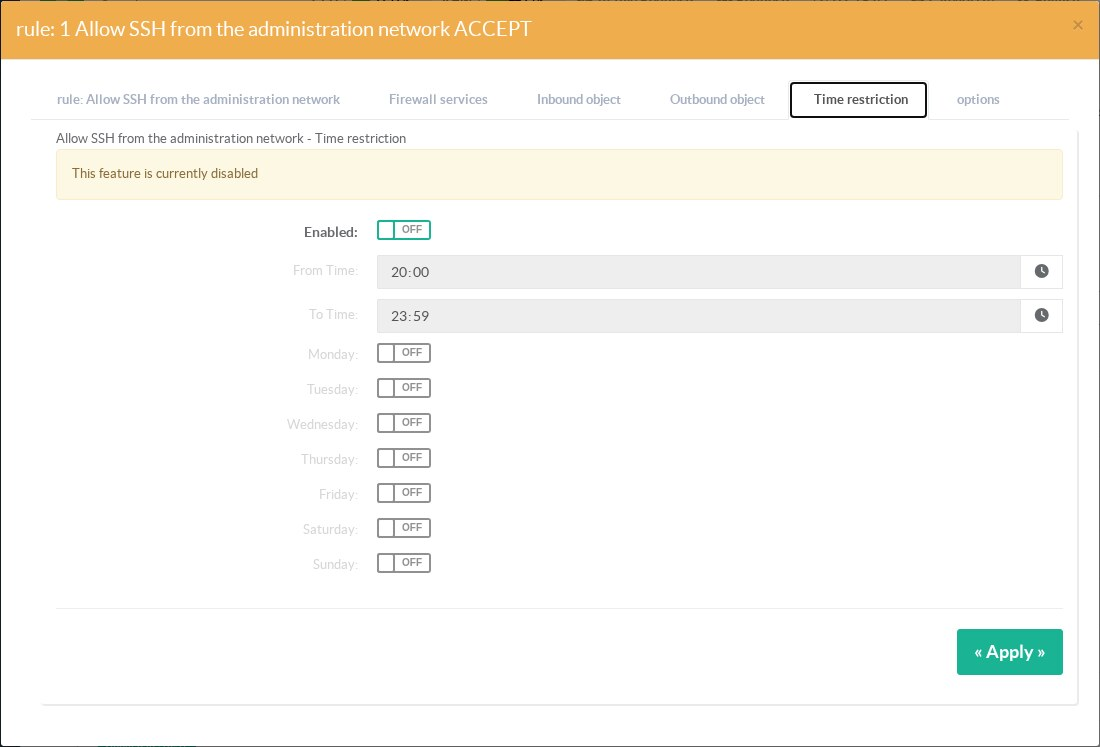
When a rule has several sources, destinations and services, Artica creates one kernel line per combination; the counters of the table add them up.
¶ Sections
When a rule has a Section, a header line is inserted in the list each time the section changes from one rule to the next. Click the header to fold or unfold its rules; your browser remembers it. The section field proposes the sections that already exist.
Sections only organize the display: the rules are still evaluated in the order of the list. Changing the description or the section of a rule is recorded in the history but does not rebuild the firewall.
¶ Unused and hidden rules
- Last used: the packet counters are read every 5 minutes; the list shows when each rule last matched traffic, never, or Under observation during its first 30 days.
- Unused for 30 days: an enabled rule that matched nothing for 30 days. The button of the same name in the page header lists only those rules: they are candidates for cleaning. A disabled rule is never reported as unused.
- Hidden rules: a rule placed after another rule that already decides all its traffic — same interface (or the earlier rule on All interfaces), same direction, an Accept or Drop action, and the same or wider services, sources and destinations — can never match. It shows the warning Hidden by rule #N; the button Hidden rules lists them. The check is cautious: a rule with a schedule, an application filter, a limit or an expiry never hides another one, and objects are compared by identity, not by content — so some hidden rules may not be detected, but a reported one is always really hidden.
¶ Order of the rules
- The rules of an interface are evaluated from top to bottom; the first Accept, Drop or Stop checking rule that matches ends the evaluation.
- Rules on All interfaces are applied to every linked interface.
- Use the arrows of the Order column to move a rule.
- The protection modules (trusted networks, CrowdSec, black lists…) are always evaluated before your rules.
- Outgoing rules only apply to new connections; replies to established connections are never filtered. What no outgoing rule decides follows the outgoing default policy of the interface (parameters): allowed by default, or rejected with Finally deny all.
¶ Temporary rules
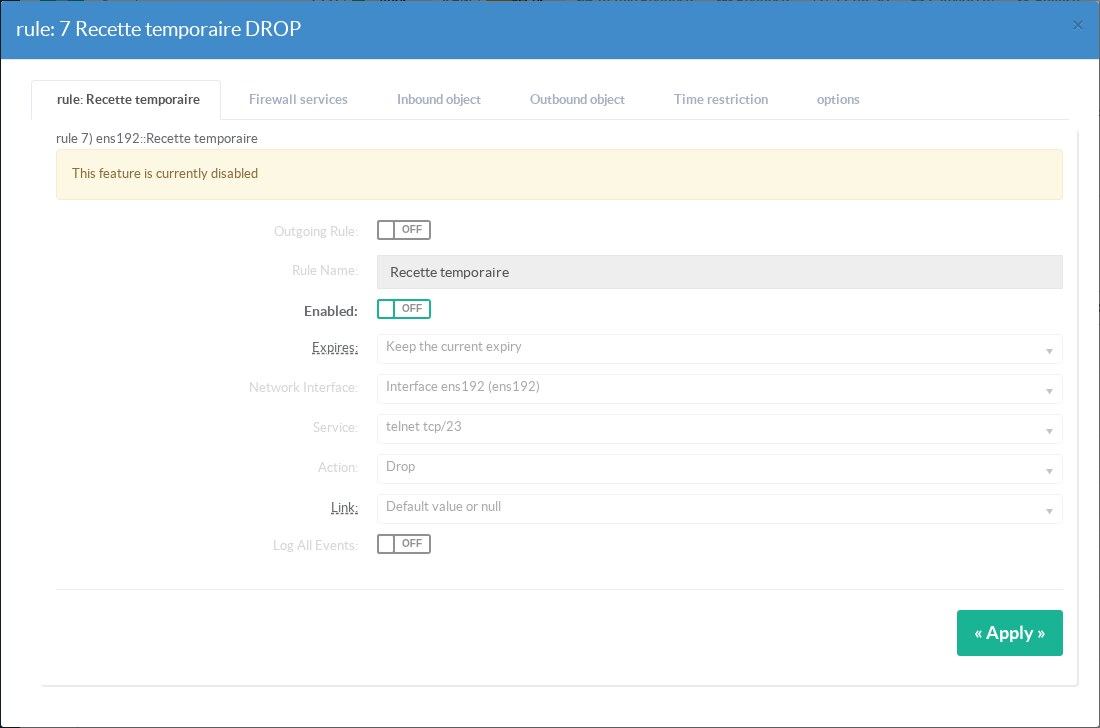
A rule can be opened for a limited time — for example remote desktop access for a contractor during an intervention. In the rule form, choose Expires: 1 hour, 4 hours, 8 hours, 1 day, 7 days or 30 days.
- The rules list shows expires in 3 h next to the rule name.
- When the delay has passed, the rule is disabled automatically within a minute — never deleted — and shows expired. The administrators receive one notification, and the configuration history records the change.
- To use an expired rule again, open it, check Enabled and choose a new duration — or Make the rule permanent. Enabling it without a new duration is refused.
- An existing temporary rule keeps its expiry when you edit it (Keep the current expiry).
To check what a rule really does, use the packet tester. To prepare several changes and see their effect before applying them, open a draft.
¶ Examples
¶ Allow SSH only from the administration network
- Create a firewall object Administration network containing
192.168.10.0/24. - Create a rule on the WAN interface, service ssh, action Accept, inbound object Administration network.
- Set the default policy of the interface to Finally deny all: SSH from any other source is rejected.
¶ Observe before blocking
- Create the rule with the action Log only.
- Check the firewall events for a few days.
- Change the action to Drop when you are sure of the matched traffic.