You create the agent in the console, install the program on the server, then run the enrollment command once on that server.
Windows and Linux are covered separately below.
¶ 1. Enable tunnel agents and create the agent
In the RDS Proxy, open the Tunnel agents tab, then Status.
Click Enable tunnel agents if the receiver is disabled.
Then click New agent, enter an identifier and the validity of the code.
The identifier starts with a lowercase letter or a digit.
It contains only lowercase letters, digits and hyphens, 48 characters at most.
Use a name that describes the server, for example srv-erp or plant-lyon-hmi.
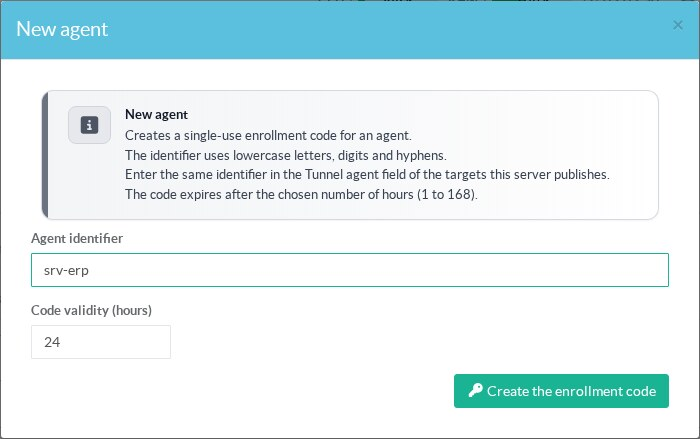
The code is valid 24 hours by default, from 1 to 168 hours.
Click Create the enrollment code.
The window then shows the code, the commands for each system and the download links.
The window also says that an agent installed with the MSI starts and connects on its own.
Other installs need the start command shown below the enrollment commands.
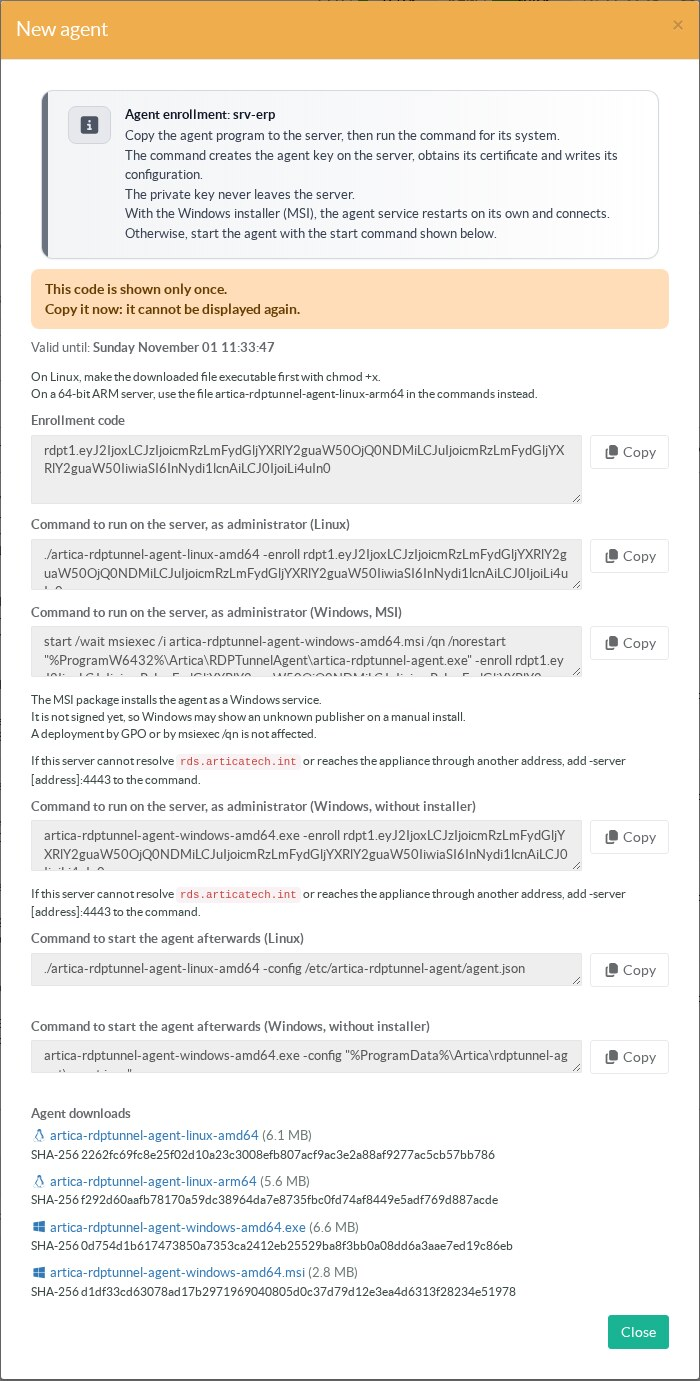
The code shown here is an example.
Each block has a Copy button.
The code is shown only once.
Copy it now, it cannot be displayed again.
It can be used once, before its expiry date.
If it is lost, create a new code for the same identifier: the new code replaces the previous one.
The code holds the address of the appliance, the identifier of the agent, a random token and the fingerprint of the certification authority.
The address is the first name of the receiver certificate, shown in the Status tab.
Treat the code like a password until it is used.
¶ 2. Windows: install the MSI package
Download artica-rdptunnel-agent-windows-amd64.msi from the result window or from the Agent downloads tab.
Check its SHA-256 fingerprint against the one shown by the console.
Copy it to the server.
Open an elevated command prompt (Run as administrator) and run the two lines given by the console:
start /wait msiexec /i artica-rdptunnel-agent-windows-amd64.msi /qn /norestart
"%ProgramW6432%\Artica\RDPTunnelAgent\artica-rdptunnel-agent.exe" -enroll rdpt1.eyJ2Ijox...start /waitmatters in a script.
msiexec is a graphical program, socmdwould not wait for it and the enrollment would start before the agent is copied.%ProgramW6432%always names the 64-bit Program Files folder, where the MSI installs the agent.%ProgramFiles%would point toProgram Files (x86)in a 32-bit command prompt.- In PowerShell, write the second line as
& "$env:ProgramW6432\Artica\RDPTunnelAgent\artica-rdptunnel-agent.exe" -enroll rdpt1.... - Always keep
/norestart.
A normal installation needs no reboot.
When the enrollment succeeds, the command prints:
enrolled as srv-erp; the ArticaRDPTunnelAgent service was restarted with the new certificateThe agent appears as Connected in the console a few seconds later.
¶ What the MSI installs
| Item | Value |
|---|---|
| Program | %ProgramFiles%\Artica\RDPTunnelAgent\artica-rdptunnel-agent.exe |
| Configuration and key | %ProgramData%\Artica\rdptunnel-agent (agent.json, agent.key, agent.crt, ca.crt) |
| Service name | ArticaRDPTunnelAgent, displayed as Artica RDS tunnel agent |
| Service account | The virtual account NT SERVICE\ArticaRDPTunnelAgent.No password. Never LocalSystem. |
| Startup | Automatic (delayed start) |
| Recovery | Restart after 5 s, then 30 s, then 60 s. The failure counter resets after one day. |
| Event log | Application log, source ArticaRDPTunnelAgent |
| Programs and Features | Artica RDS tunnel agent, publisher Artica |
The installation also sets the permissions.
The configuration folder is readable by the service account and writable only by SYSTEM and the Administrators.
Ordinary users cannot read agent.key.
The program folder is read-only for users, so nobody but an administrator can replace the program the service runs.
Right after the installation, the service starts and waits for its configuration.
It writes "not enrolled" in the Application log at most once an hour, and checks every 30 seconds.
It connects as soon as the enrollment has written the configuration.
¶ The MSI never carries the enrollment code
An MSI property would end up in the installation log, on the command line and in the GPO share.
Enrollment is therefore a separate command, run once per server by an administrator.
For a GPO deployment, deploy the MSI, then run the enrollment command on each server.
¶ Upgrade, repair and uninstall
| Operation | Command (elevated prompt) | Effect |
|---|---|---|
| Upgrade | start /wait msiexec /i <new>.msi /qn /norestart |
The previous version is removed, then the new one recreates the service. The configuration is kept, no new enrollment is needed. An older version than the installed one is refused. |
| Repair | msiexec /fomus <file>.msi /qn /norestart REBOOT=ReallySuppress |
The service is stopped before the files are copied, then restarted. Exit code 3010 means a reboot is planned: see troubleshooting. |
| Uninstall | msiexec /x <file>.msi /qn /norestart |
The service and its event source are removed. The configuration folder is kept on purpose. Delete %ProgramData%\Artica\rdptunnel-agent by hand to forget the enrollment. |
¶ 3. Windows without the MSI
The executable artica-rdptunnel-agent-windows-amd64.exe is still available.
Enroll from an elevated prompt, then start the agent in the foreground:
artica-rdptunnel-agent-windows-amd64.exe -enroll rdpt1.eyJ2Ijox...
artica-rdptunnel-agent-windows-amd64.exe -config "%ProgramData%\Artica\rdptunnel-agent\agent.json"To run it as a service without the MSI, use service install from an elevated prompt.
The command registers the service on the executable where it is.
It refuses when ordinary users can modify the executable or one of its folders, for example C:\temp, a download folder or a folder created at the root of C:.
Someone could then replace the program and take over the service account.
Copy the executable (do not move it, a moved file keeps its permissions) into %ProgramW6432%\Artica\RDPTunnelAgent, or install the MSI.
| Command | Effect |
|---|---|
service install [-config <file>] |
Creates the service, its event source and the permissions, then starts it. |
service uninstall |
Stops and deletes the service and its event source. The configuration is never removed. |
service start, service stop, service status |
Controls the service. |
Do not start the executable in the foreground when the MSI service is installed.
Two copies with the same certificate replace each other on the appliance, endlessly.
¶ 4. Linux
Download artica-rdptunnel-agent-linux-amd64 (or artica-rdptunnel-agent-linux-arm64 on a 64-bit ARM server).
Make it executable, then enroll as root:
chmod +x artica-rdptunnel-agent-linux-amd64
./artica-rdptunnel-agent-linux-amd64 -enroll rdpt1.eyJ2Ijox...
./artica-rdptunnel-agent-linux-amd64 -config /etc/artica-rdptunnel-agent/agent.jsonThe enrollment writes the configuration in /etc/artica-rdptunnel-agent, created with mode 0700.
The key agent.key has mode 0600.
The agent has no Linux package yet.
To start it at boot, write a systemd unit yourself, for example /etc/systemd/system/artica-rdptunnel-agent.service:
[Unit]
Description=Artica RDS tunnel agent
After=network-online.target
Wants=network-online.target

[Service]
ExecStart=/usr/local/bin/artica-rdptunnel-agent-linux-amd64 -config /etc/artica-rdptunnel-agent/agent.json
Restart=always
RestartSec=5

[Install]
WantedBy=multi-user.targetThen run systemctl daemon-reload and systemctl enable --now artica-rdptunnel-agent.
¶ Enrollment options
| Option | Use |
|---|---|
-server host:port |
Connect to this address instead of the one in the code. Use it when the server cannot resolve the name of the appliance, or reaches it through a NAT address. The agent still checks the certificate against the name and the authority of the code. |
-forward host:port |
Address the agent relays sessions to. Default 127.0.0.1:3389.Use 127.0.0.1:5900 for a VNC server.Another machine of the local network is allowed. That choice belongs to the local administrator, never to the bastion. |
-dir folder |
Configuration folder. Default %ProgramData%\Artica\rdptunnel-agent on Windows, /etc/artica-rdptunnel-agent on Linux. |
-force |
Replace an existing agent.key.Without it, a second enrollment on the same machine is refused. |
-version |
Print the version and exit. |
Example behind a NAT, with a VNC server:
"%ProgramW6432%\Artica\RDPTunnelAgent\artica-rdptunnel-agent.exe" -enroll rdpt1.eyJ2Ijox... -server 203.0.113.10:4443 -forward 127.0.0.1:5900¶ The agent configuration file
The enrollment writes agent.json.
Relative paths are read from the folder of the file.
{
  "ca": "ca.crt",
  "cert": "agent.crt",
  "forward": "127.0.0.1:3389",
  "key": "agent.key",
  "server": "192.168.1.225:4443",
  "server_name": "rds.articatech.int"
}To change the address of the appliance or the forwarded address later, edit server or forward as an administrator, then restart the agent or the service.
There is no option to turn off the certificate checks.
After a network failure, the agent reconnects after 1 second, then doubles the delay up to 60 seconds.
¶ Next step
Attach the agent to a target: see Attach a target to an agent.