The RDS Proxy draws its own screens before the user reaches a server: the login screen, the list of targets and the dialog boxes.
You can give these screens the colors and the logo of your company, and show a welcome text on the login screen.
This customization requires an Artica license.
¶ Benefits
- Users recognize the gateway of their company.
Your logo and your colors replace the default Artica look on every screen of the gateway. - Users read your notice before they sign in.
The welcome text tells who may connect, who to call for help and that sessions are recorded. - Changes apply without any interruption.
A new color, logo or text applies from the next connection, and open sessions keep running. - Nothing is installed on the workstations.
The gateway draws the screens in the Remote Desktop window, whatever the RDP client. - An oversized or broken picture cannot exhaust the memory of the gateway.
Every uploaded logo is checked, shrunk if needed and re-encoded before use.
¶ Default look and custom look
Without customization, the gateway uses the Artica look: a dark green background (#005447) and the Artica logo.
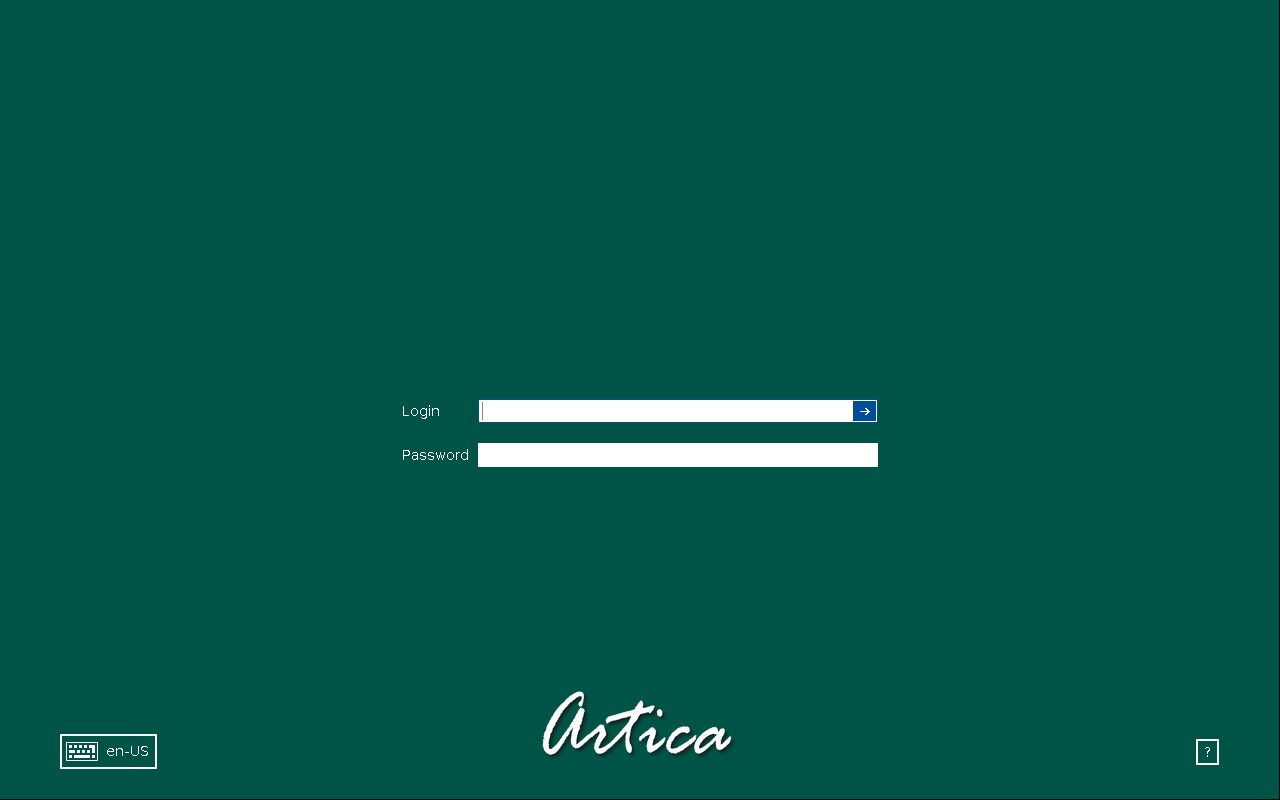
Users who connect without saved credentials see this screen first.
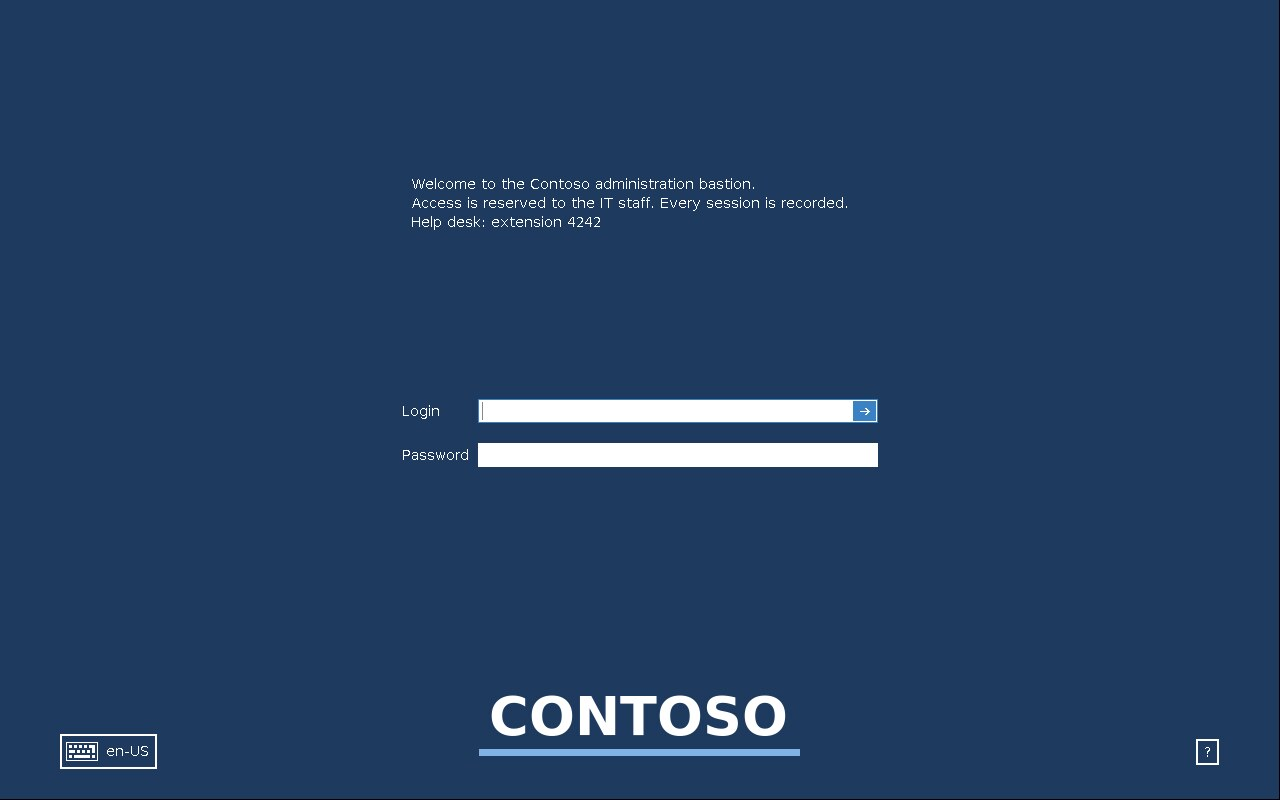
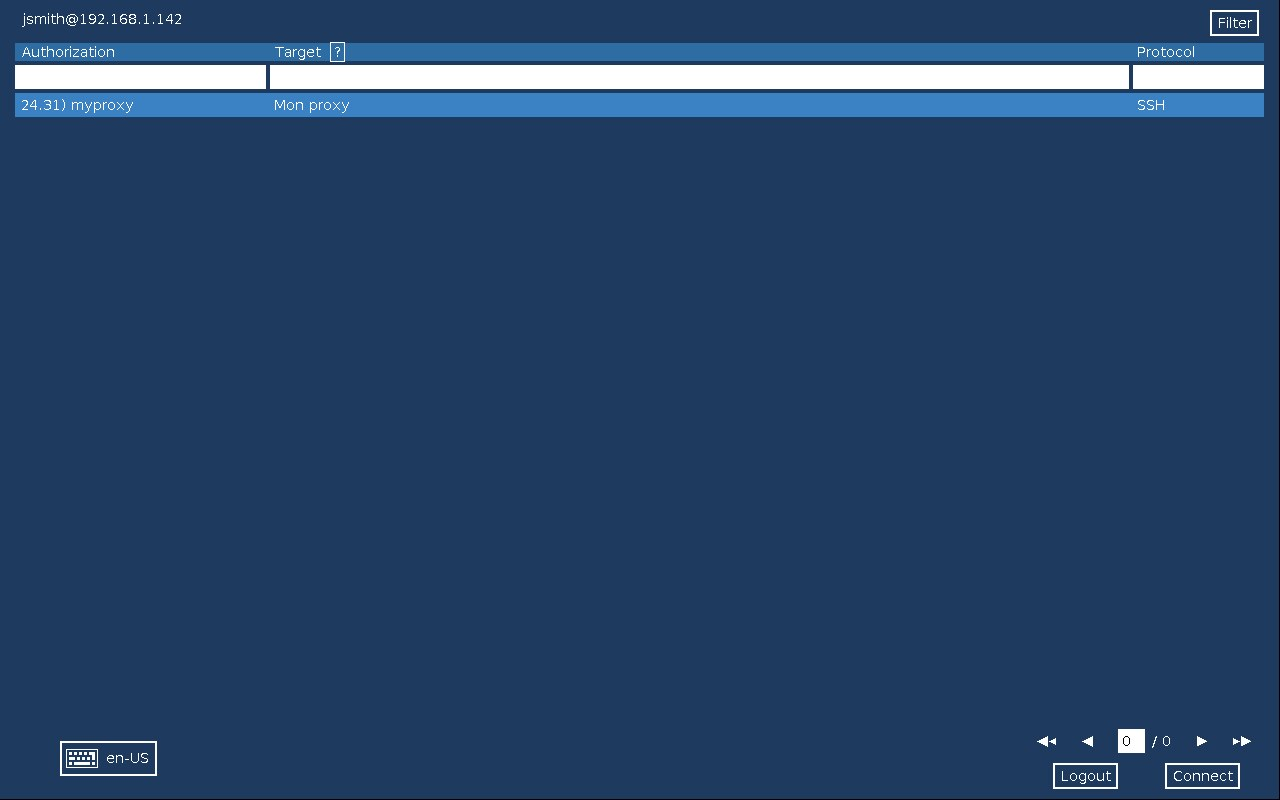
With a license, you choose the colors, the logo and a welcome text.
¶ Requirements
- An Artica license (Corporate or Gold).
Without it, the gateway keeps the default look.
See Without a license. - The welcome text needs the authentication service of the gateway (authhook) in version 1.6.3 or later.
The console shows a warning when the running version is older. - With the gateway engine 12.3.21 or later, the login screen no longer shows the engine name under the logo.
¶ Open the settings
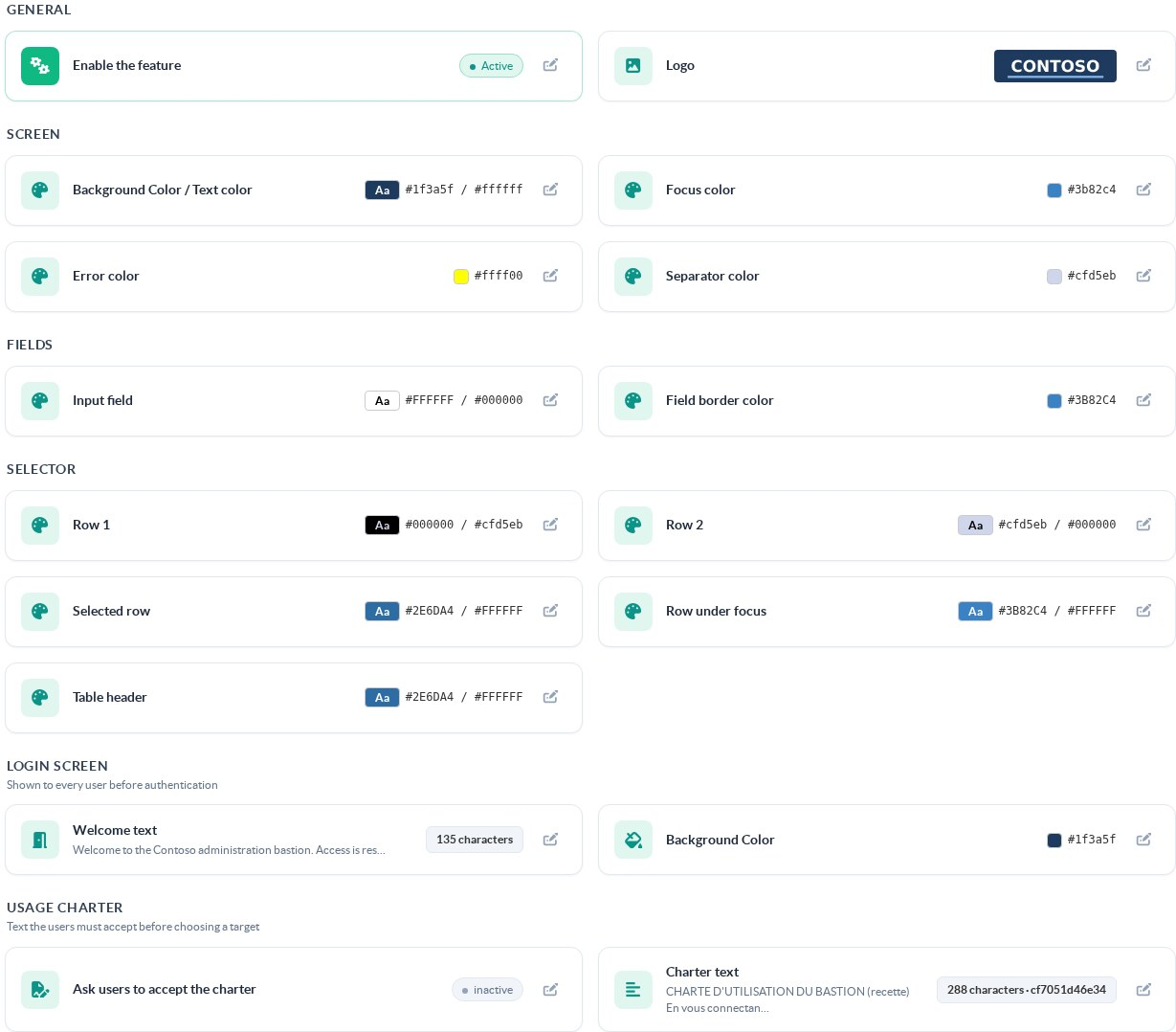
Open RDS Proxy » Status and click the Template tab.
Each section opens its own dialog with the pencil at the end of a row.
| Section | What it changes |
|---|---|
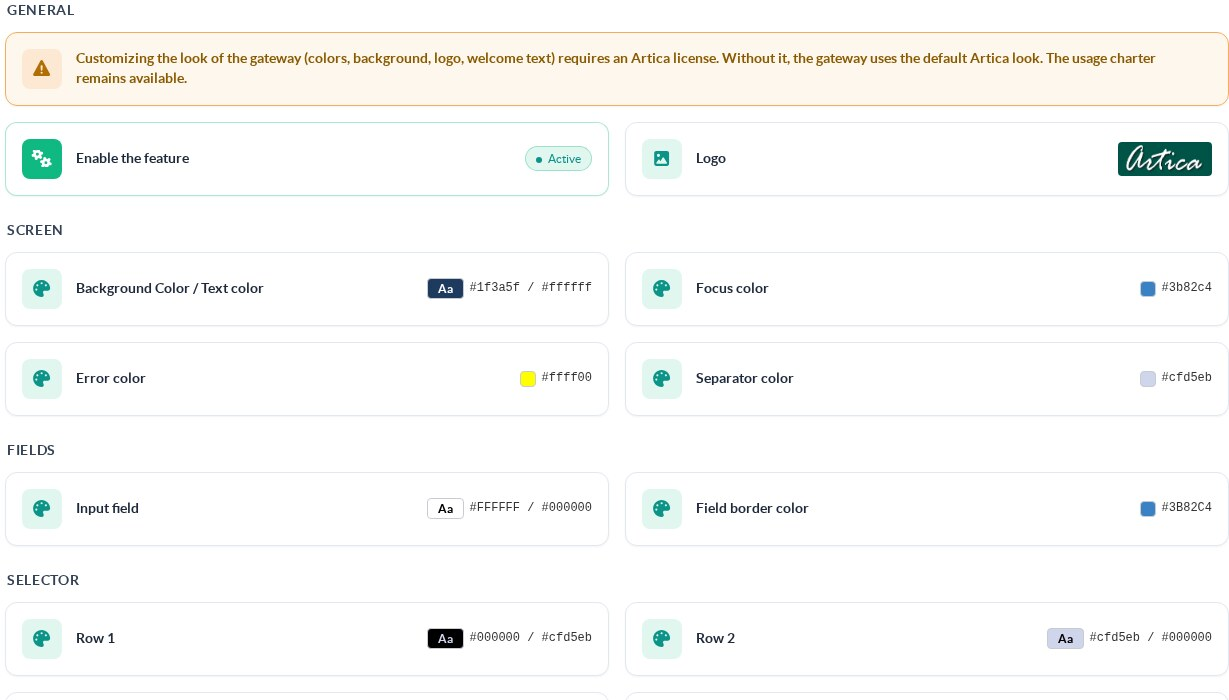
| General | Enable the feature turns the custom colors on. The logo is shown on the login screen and on the dialog boxes. |
| Screen | Background, text, focus, error and separator colors of every screen. |
| Fields | Background and text of the input fields, and the border of the field that has the focus. |
| Selector | Colors of the list of targets: the two alternating rows, the selected row, the row under the mouse and the table header. |
| Login screen | The welcome text and the background color. |
| Usage charter | A text that users must accept before choosing a target. See IT charter in the RDS Proxy session. |
¶ Change the logo
- Click the pencil of Logo or Enable the feature.
- Click Picture (*.png) and choose your file.
The logo is installed as soon as the upload ends. - Turn on Enable the feature and click Apply to use your colors as well.
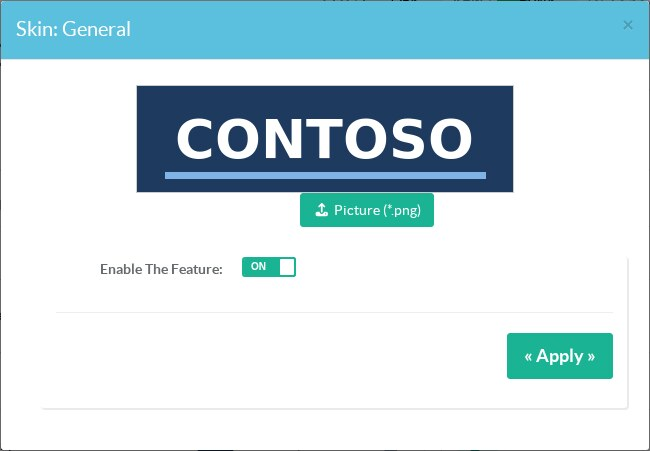
A light logo on a transparent background stays readable.
| Rule | Detail |
|---|---|
| Format | PNG only. |
| File size | 4 MiB at most. |
| Picture size | 4096 × 4096 pixels at most. A larger picture is refused before it is read. |
| Display size | The logo is shrunk to fit 600 × 200 pixels, keeping its proportions. A smaller logo is kept as is. |
The console shows the reason when it refuses a picture.
¶ Change the colors
- Click the pencil of a row in Screen, Fields or Selector.
- Pick the colors, then click Apply.
- Open a new Remote Desktop connection to check the result.
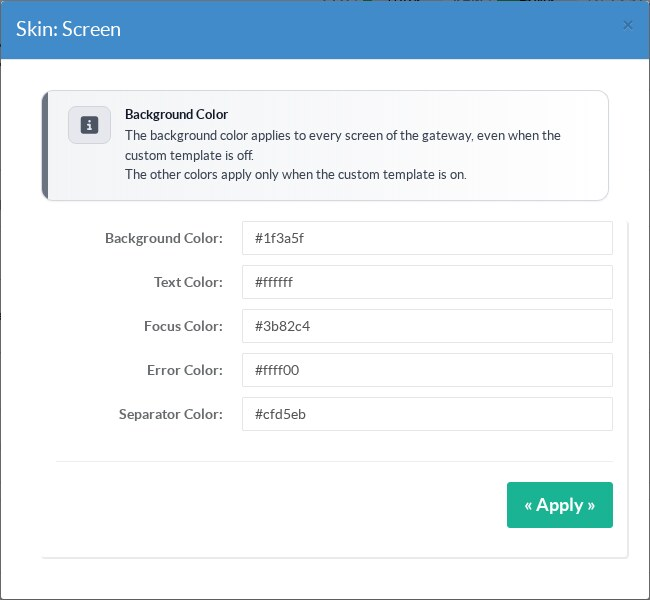
The background color applies to every screen of the gateway.
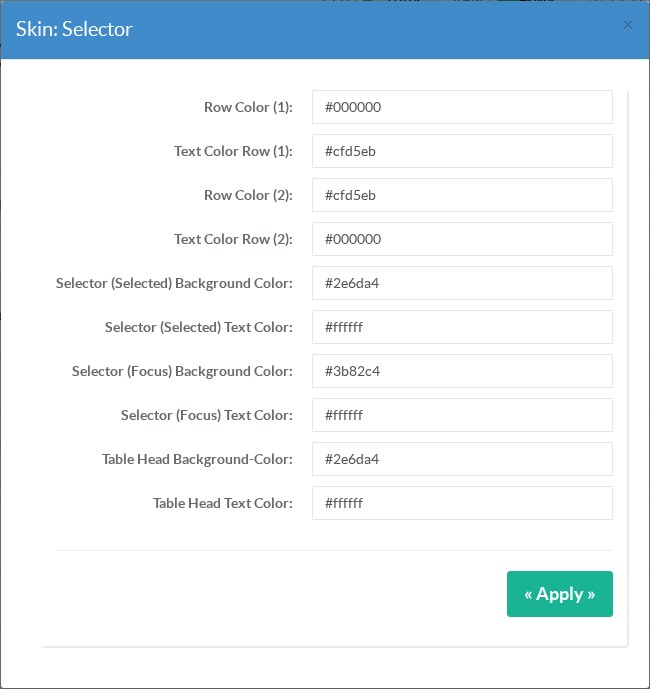
The background color applies even when Enable the feature is off.
The other colors apply only when it is on.
Keep enough contrast between a text and its background, or the screen becomes hard to read.
¶ Add a welcome text
- Click the pencil of Welcome text in the Login screen section.
- Type the text, then click Apply.
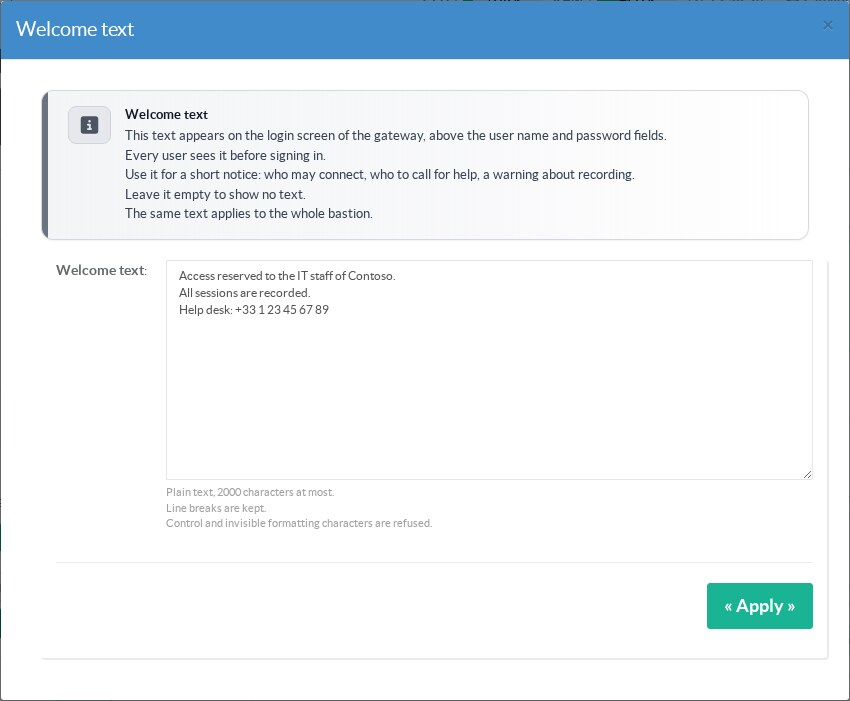
Line breaks are kept.
The text appears above the fields of the login screen.
A long text scrolls inside its area.
Control characters and invisible formatting characters are refused, because they could hide part of the text.
Leave the field empty to remove the text.
The login screen only appears when the Remote Desktop client does not send the user name and the password.
A user who saved credentials in mstsc goes straight to the next step and does not see the welcome text.
Use the usage charter when every user must read a text at every connection.
¶ Without a license
Without an Artica license, the gateway uses the default Artica look.
The logo, the colors, the background color and the welcome text you saved are kept, but they are not applied.
- The usage charter remains available.
- When a license becomes active or expires, the gateway changes its look within three minutes, without restart.
- Without a license, the gateway accepts three simultaneous sessions at most (authhook 1.6.5 or later).
The next connection is refused until a session ends.
¶ When changes apply
A new logo, color or welcome text applies from the next connection.
The console rewrites the configuration of the gateway without restarting it, so the open sessions are not cut.
A user who is already on the login screen or on the list of targets keeps the previous look until the next connection.
¶ REST API
The welcome text and the logo have their own routes on the local API socket.
See the RDS Proxy REST API page for the access rules.
SOCKET=/usr/share/artica-postfix/bin/run/articarest.sock

# Read the welcome text (text, chars, supported, licensed)
curl -s --unix-socket $SOCKET http://localhost/rdpproxy/welcome

# Set the welcome text ("" removes it)
curl -s --unix-socket $SOCKET -X POST -H 'Content-Type: application/json' \
  -d '{"text":"Access reserved to the IT staff.\nHelp desk: extension 4242"}' \
  http://localhost/rdpproxy/welcome

# Rewrite the gateway configuration after a change (no restart)
curl -s --unix-socket $SOCKET -X POST http://localhost/rdpproxy/config/applyWithout a license, the routes that change the welcome text or the logo answer the HTTP code 403 with license_required.
A refused text answers 400 with the reason, and nothing is saved.
¶ Troubleshooting
| Symptom | Check |
|---|---|
| The new colors do not show | Open a new Remote Desktop connection. Check that Enable the feature is on, except for the background color. |
| The pencils are missing and a warning is shown | The appliance has no active Artica license. |
| The welcome text does not appear | The client sent saved credentials, so the login screen was skipped. Otherwise, check the authhook warning in the Login screen section. |
| The logo is refused | Read the reason in the error box. Export the logo as PNG, under 4 MiB and 4096 × 4096 pixels. |
| The engine name appears under the logo | Upgrade the gateway engine to 12.3.21 or later. |