The Artica Web Console can delegate administrator authentication to your own identity provider through SAML 2.0.
Microsoft Entra ID, Okta, Keycloak, ADFS and any other SAML 2.0 provider are supported.
Once enabled, the console stops asking for a username and a password.
Administrators are redirected to your identity provider, authenticate there — with whatever multi‑factor and conditional access policy you already enforce — and come back to the console with a signed assertion.
¶ Why use it
- Your MFA, not ours.
Multi‑factor authentication, conditional access, impossible‑travel detection, device compliance, risk‑based policies:
Everything your identity provider does now applies to the appliance console.
Artica does not need to implement any of it.
- No password reaches the appliance.
Administrator credentials are typed on your identity provider, never on the appliance.
A compromised appliance cannot leak them.
- One place to revoke.
Disabling an account in your directory immediately closes the door to every appliance federated with it.
- Local privileges stay local.
Authentication moves to your provider, but authorisation remains in the appliance:
Every user still needs a local administrator account, whose group carries the rights.
Nobody gets in just because your directory says so. - Auditable.
Every sign‑on, every rejected assertion and every reason is written to/var/log/artica-webauth.logand to the administrator audit trail.
- No inbound connection required.
The browser relays both SAML messages.
The appliance never needs to be reachable from your identity provider, so it can stay behind NAT.
¶ Use cases
- Enforce corporate MFA on appliance administration.
The most common case: your security policy demands MFA everywhere, and appliance consoles are the last islands with local passwords.
- Joiners / movers / leavers.
Administrator turnover is handled in the directory.
No more per‑appliance password rotation when someone leaves.
- Managed service providers.
Technicians sign in with their own corporate identity on every customer appliance, with individual traceability instead of a sharedManagerpassword.
- Compliance requirements.
ISO 27001, PCI DSS, NIS2 and similar frameworks ask for centralised authentication and strong authentication for administrative access. - Conditional access. Restrict console administration to managed devices, to a corporate network, or to a time window — all expressed as policies on your identity provider.
¶ How it works
- An administrator opens the console.
The console builds a signed authentication request and redirects the browser to your identity provider. - The administrator authenticates there (password, MFA, conditional access…).
- The identity provider posts a signed assertion back to the console.
- The console validates the signature, the destination, the audience, the validity window, and checks that the response answers its own request.
A replayed assertion is refused. - The identity carried by the assertion is matched against a local administrator account.
The account's group provides the privileges, and the session opens.
¶ Before you start
- The appliance clock must be accurate.
SAML assertions are only valid for a few minutes; a drift beyond three minutes rejects every sign‑on.
Keep NTP enabled.
- The console must be reachable over HTTPS at an address the browsers can resolve
that address is what you will declare on the identity provider.
- You need the identity provider's EntityID, sign‑on URL and signing certificate.
¶ Step 1 — Create the local administrator accounts
SAML authenticates people; it does not grant them anything.
If this appliance manages its administrators in Active Directory, skip this step and read Where accounts come from instead: the directory then replaces the local account list entirely.
Each administrator who will sign in must exist as a local account.
Go to Top/Right icon > Local Admins, create a group, give that group the privileges you want, then create the accounts and link them to the group.
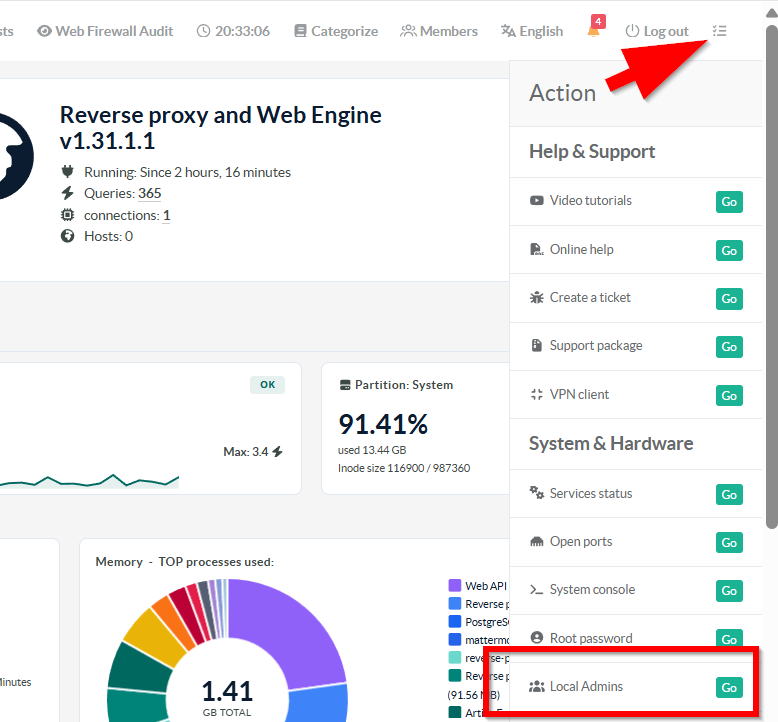
The account name must be exactly the identity the assertion will carry — usually the UPN, for example alice@example.com.
The comparison is case‑insensitive.
These accounts never sign in with their password.
Give them a password value that cannot be used, and keep the account enabled: disabling it blocks the user even if your identity provider authenticates them — which is exactly how you revoke access locally.
¶ Where accounts come from
Your identity provider proves who the person is.
The appliance still decides what they may do, and it reads that from one of two account stores.
The choice is made at every single sign-in, from the Active Directory Feature — there is nothing to configure on the SAML side.
| Active Directory feature | Account store | Privileges come from |
|---|---|---|
| Disabled (default) | Local administrator accounts (Step 1) | The group the local account belongs to |
| Enabled | Your declared Active Directory connections | The user's Active Directory groups, exactly as after a password sign-in |
¶ How the directory is queried
Because your identity provider has already proven the identity, the appliance never asks the directory to authenticate anyone: there is no password to replay. It binds with the service account of the connection and simply confirms that the account exists, is enabled, and reads the DN its privileges derive from.
The account is looked up by
userPrincipalNamefirst — that is what an Entra ID assertion carries, and the only attribute that cannot designate a namesake.
sAMAccountNameis tried only if the UPN matches nothing.
The session then opens under the sAMAccountName returned by the directory, not under the UPN carried by the assertion — that is the name the rest of the console, the audit trail and the privilege engine expect.
¶ Allowing console sign-in on the connection
Each Active Directory connection carries a Users can connect flag.
SAML honours it exactly like password sign-in: a connection on which you have forbidden console sign-in does not become a way in simply because the user arrives through your identity provider.
If every declared connection has that flag turned off, sign-in is refused with an explicit reason — Active Directory sign-in to the Web console is not allowed on this connection — rather than a misleading “unknown account”. This is the first thing to check if nobody can sign in after switching to Active Directory.
¶ Revoking an administrator
Disable the account in Active Directory.
The appliance re-reads userAccountControl at every sign-in, so a disabled account is refused even while your identity provider still authenticates it happily — the directory has the last word.
¶ Step 2 — Declare the console on your identity provider
Create a new SAML application and give it these two values, which the console computes for you:
| Field on the identity provider | Value |
|---|---|
| Identifier / Entity ID / Audience | https://<console>:9000/saml |
| Reply URL / ACS / Single sign-on URL | https://<console>:9000/fw.login.saml.php?acs=yes |
The console also publishes its metadata as an XML document, which most providers can import directly:
https://<console>:9000/fw.login.saml.php?metadata=yes
Make sure the application returns an assertion that is signed, and that the NameID (or the attribute you will select in step 3) carries the account name used in step 1. On Entra ID, the default Unique User Identifier (Name ID) claim set to user.userprincipalname is the usual choice.
Re-import the metadata after any of the following: enabling Single Logout, generating or replacing the signing key, or changing the Console Base Address. The metadata carries the logout endpoint and the signing certificate; a provider holding an older copy will not know where to send logout notifications and will refuse signatures made with the new key.
¶ Step 3 — Configure the console
- Open
Your system > Artica Web console.
In the Authentication section, the SAML Single Sign-On row shows the current state.
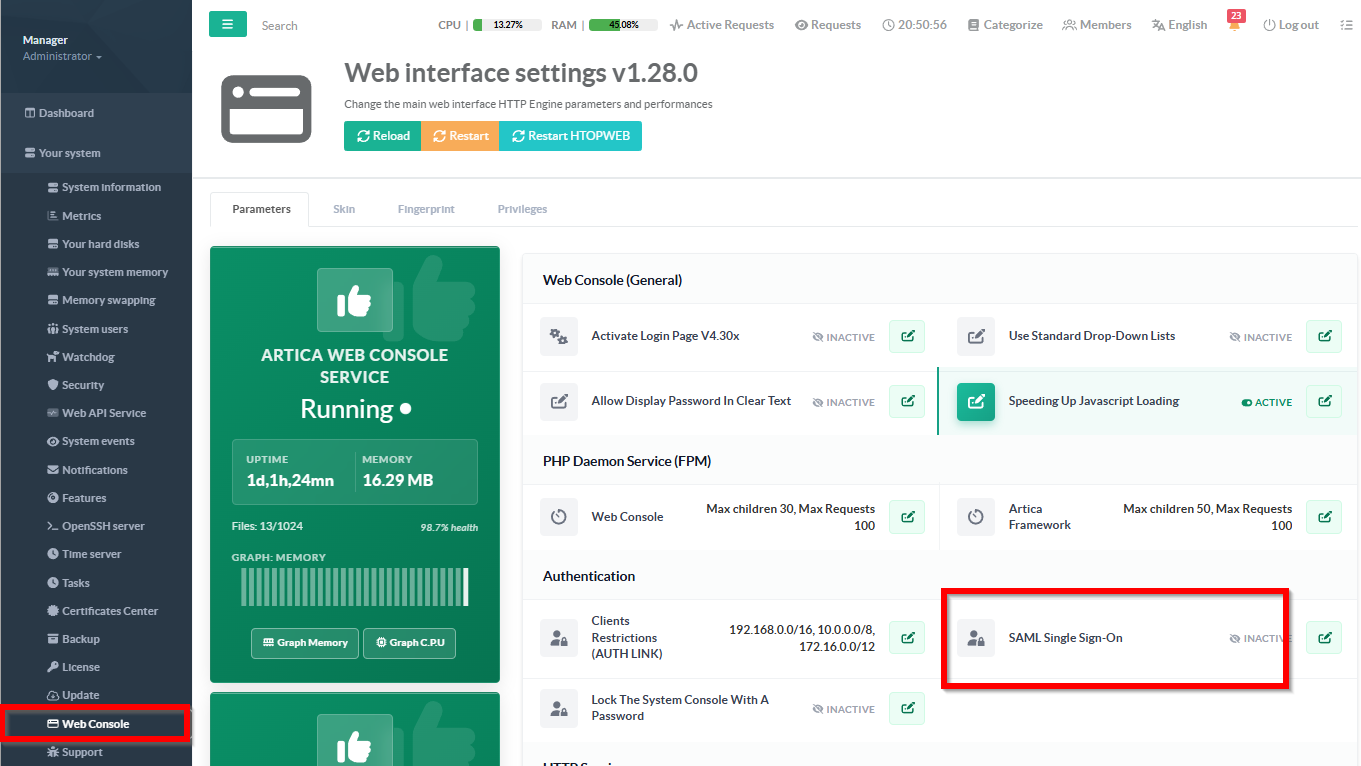
- Click the row to open the settings.
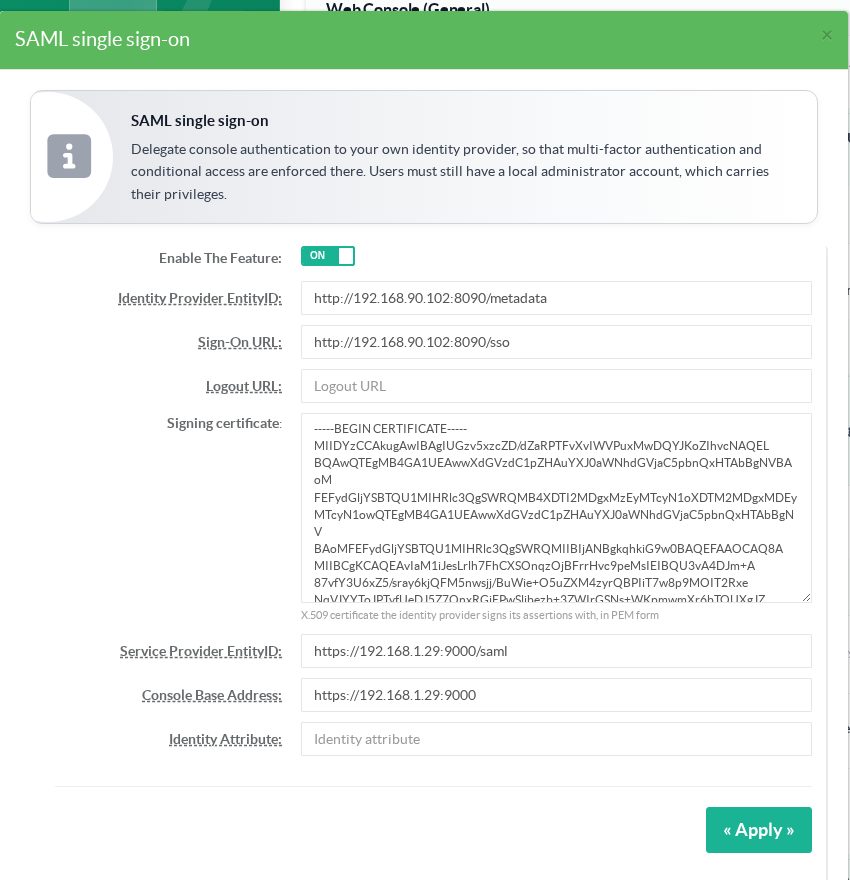
| Setting | What to put in it |
|---|---|
| Identity Provider EntityID | The issuer identifier published by your provider. |
| Sign-On URL | Where administrators are redirected to authenticate. |
| Logout URL | The provider's Single Logout endpoint. Fill it in to close the provider session as well when an administrator signs out. Leave it empty to keep signing out of the console only. |
| Signing certificate | The X.509 certificate your provider signs assertions with, pasted in PEM form. |
| Service Provider EntityID | What you declared in step 2. Must be identical on every node of a cluster — see below. |
| Console Base Address | Only needed behind a reverse proxy, when the address seen by the browser differs from the one the console sees. Leave empty to derive it from the request. |
| Identity Attribute | Leave empty to match on the NameID. Fill it only when the account name is carried by another claim, for example the UPN claim. |
| Sign authentication requests | Sign the AuthnRequest sent to the provider. Enable it only if the provider expects a signature: it will otherwise reject every sign-in. |
| Sign logout messages | Sign the LogoutRequest and LogoutResponse. Most providers require this for Single Logout. |
| Service provider private key | PEM private key used to sign outgoing messages. It is never displayed again once stored: leave the field empty to keep the current one. |
| Service provider certificate | PEM certificate matching that key. It is published in the metadata so the provider can verify our signatures. |
You do not have to bring your own key. If the panel above the form says No signing key, use Generate a signing key: the console creates a self-signed RSA-2048 pair valid for ten years and stores it. A SAML signing certificate is almost always self-signed — it does not prove an identity the way a TLS certificate does, it only ties the messages to a key your provider knows from the metadata. Do not reuse your web server key here.
The panel then shows the subject, the expiry date and the SHA-256 fingerprint. The private key is never sent back to the browser. Replacing it is done by generating a new one or by pasting a new pair — never by reading back what is stored.
Whenever you generate or replace the key, re-import the metadata into your provider (step 2). Until you do, it keeps verifying with the previous certificate and refuses every signed message.
¶ Step 4 — Check the configuration before enabling
Use Check configuration at the bottom of the dialog.
It reads the certificate, checks that it is valid and not expired, validates the URLs, and reminds you of the two values to declare on the identity provider side.
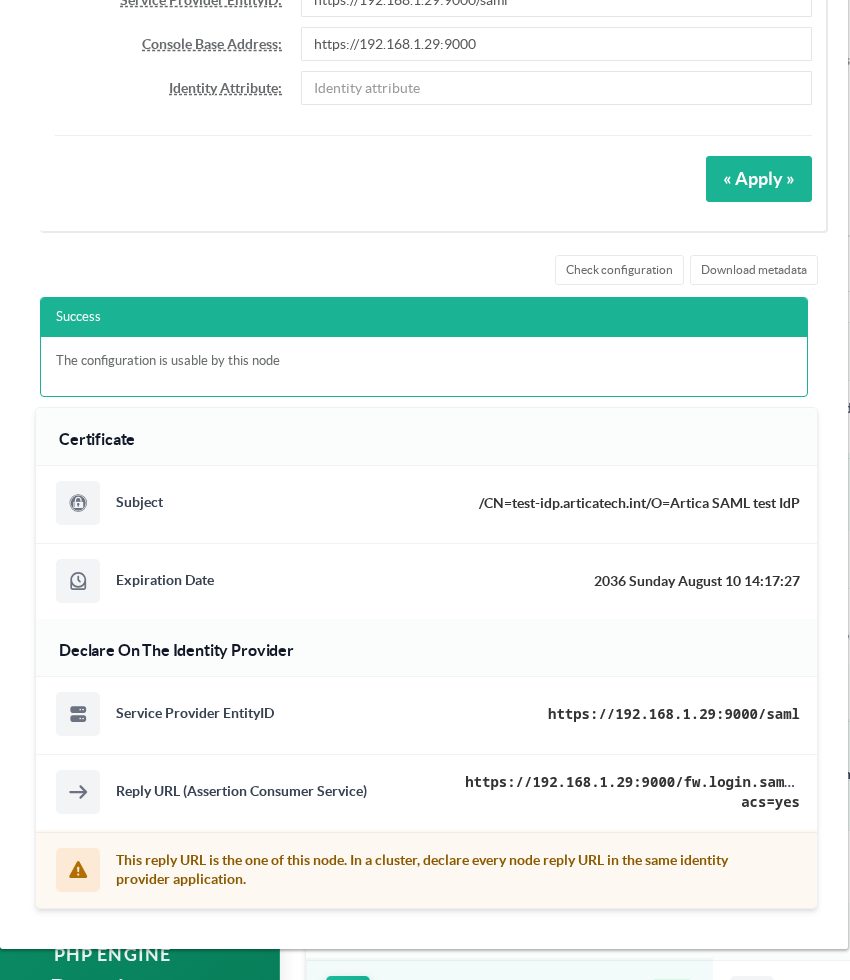
This check verifies what the appliance can verify on its own.
It cannot confirm that the application on your identity provider is correct — only a real sign‑on does that.
¶ Step 5 — Enable it
Turn Enable The Feature on and apply.
From that moment the console no longer accepts username and password:
Every visitor is redirected to your identity provider.
The console refuses to enable a configuration it knows is unusable — a missing certificate, an invalid URL — because doing so would lock everybody out.
¶ Signing in
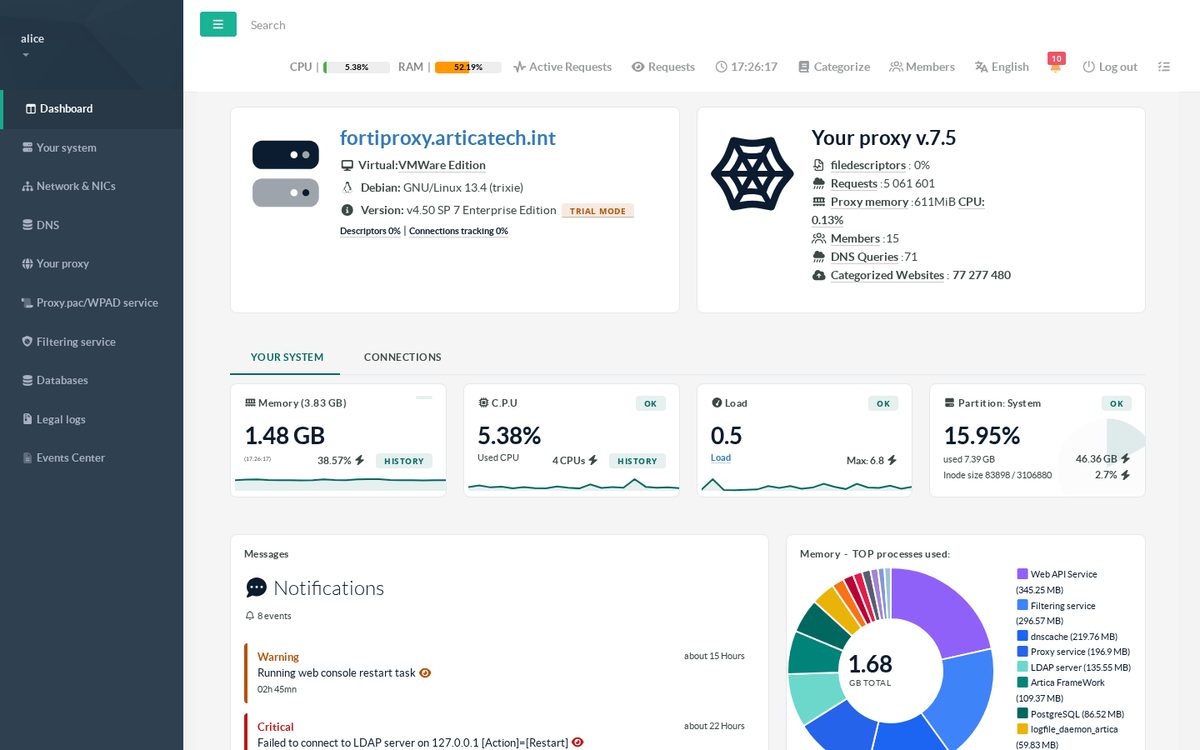
Administrators open the console URL as usual, authenticate on your identity provider, and land straight in the console with the privileges of their local group.
¶ Signing out
What the Logout button closes depends on your configuration.
| Configuration | What is closed | Where the browser lands |
|---|---|---|
| Logout URL filled in | the console session and the provider session | back on the console, on a You have been signed out page |
| Logout URL empty | the console session only | You have been signed out page |
| SAML disabled | the console session only | the usual password form |
Without a Logout URL, the provider keeps its own session: signing in again may go straight through without asking for anything, until the provider's own re-authentication policy expires. This is not a fault of the button — the sign-out page says so explicitly, so nobody assumes they are fully signed out on a shared computer.
The sign-out page never redirects on its own. That is deliberate: sending it back to the login page would immediately start a new sign-on request, the provider would answer it with its still-open session, and the administrator would be signed back in without ever seeing that they had left.
Signing out never depends on your provider answering. If it is unreachable, misconfigured, or returns something invalid, the console session is destroyed all the same and you land on the sign-out page. Only the provider session survives in that case.
Single Logout also works the other way round: when a user signs out of another application covered by the same provider session, the provider notifies the console and the console session is closed too. This requires the metadata to be re-imported (step 2), because it is the metadata that tells the provider where to send that notification.
¶ Restoring password login (break-glass)
The console never falls back to the password form on its own.
If your identity provider is unreachable, or the configuration becomes invalid, the console shows an error and keeps refusing password logins
Otherwise any incident would become a way around your MFA.
Password login is restored from the system console of the appliance (the text menu on the local screen, or over SSH), which requires physical or root access
An authentication that already happened at system level.
- Open the system console and go to Web interface.
- Select SAMLOff — Disable SAML SSO, restore password login.
The menu line also shows the current state, including ON, MISCONFIGURED when the settings are unusable. - Confirm.
The username and password form is available again on the next request.
Open sessions are not affected by this switch: it is meant to restore an access, not to evict the administrators already connected — one of whom may be the person fixing the problem.
The same menu turns the feature back on, and refuses to do so while the configuration is unusable.
SAMLInfo displays the current settings and any problem detected.
¶ Clusters
Declare one single application on your identity provider, with one reply URL per node:
- Service Provider EntityID must be identical on every node.
If each node had its own, each would be a different service provider and you would need one application per node.
- Each node sends its own reply URL in the authentication request,
and the identity provider returns the assertion to the right node.
- Add every node's reply URL to the same application.
¶ What the console rejects
An assertion is refused, and the reason logged, when it is:
- not signed, or signed with a certificate other than the configured one;
- outside its validity window (a three‑minute clock tolerance is allowed);
- issued for another audience, or addressed to another destination;
- issued by an unknown provider;
- not an answer to a request this appliance sent — including unsolicited assertions, which are always refused;
- already used once (replay protection);
- carrying an identity with no matching local account, or a disabled one.
When accounts come from Active Directory, the same assertion is also refused when the identity it carries:
- matches no account in any declared directory, or matches one that is disabled there;
- matches several accounts — an ambiguous identity never opens a session;
- comes from a connection on which console sign-in is not allowed;
- can only be checked against a directory that is unreachable — an outage denies access, it never grants it.
¶ Troubleshooting
| Symptom | Where to look |
|---|---|
| Every sign-on is rejected, suddenly | The provider's signing certificate has probably been rotated. Paste the new one; Check configuration reports an expired certificate. |
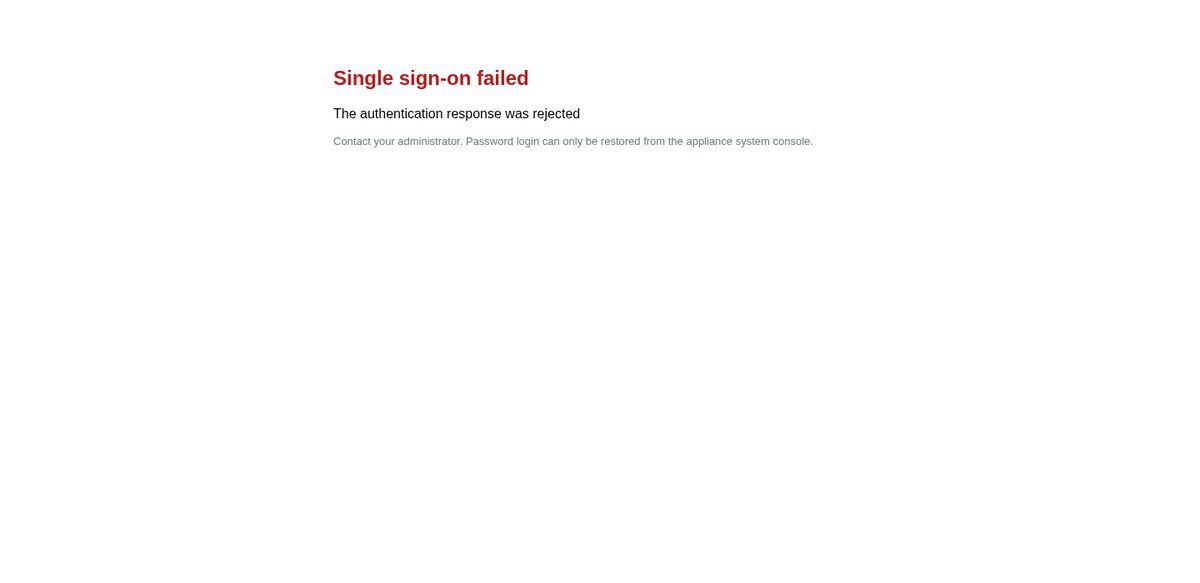
| The authentication response was rejected | /var/log/artica-webauth.log gives the exact reason (signature, audience, destination, timestamp…). |
| No local administrator account matches this identity | The assertion is valid; the identity has no local account, the account is disabled, or the name does not match. Compare it with Local administrators. |
| Rejected for an invalid destination behind a reverse proxy | Set Console Base Address to the address browsers use. |
| Timestamp errors | Check the appliance clock and NTP. |
| The metadata button downloads nothing | Fixed in the current version. It used to answer a redirect when an administrator was already signed in — anonymous downloads worked, which made it look like a browser problem. |
| The Logout button seems to do nothing | Fixed in the current version. Signing out returned to the login page, which immediately started a new sign-on request that the provider answered with its still-open session. |
| Signing out no longer closes the provider session | Check that Logout URL is filled in, and that the metadata has been re-imported since. /var/log/artica-webauth.log shows SAML-slo-sent when the request leaves, then SAML-slo-ok. |
SAML-slo-local-only with no-nameid in the log |
The session predates the activation of Single Logout, so it never carried the identifier needed to build the request. Signing in again is enough. |
| The provider refuses the logout request | It probably requires signed messages. Enable Sign logout messages, configure a signing key, and re-import the metadata. |
| Enabling SAML is refused because of the signing key | Message signing is enabled but the key and certificate are missing, or the certificate does not match the key. The console refuses rather than sending messages that the provider would reject one by one. |
All SAML events are logged with a SAML- prefix:
grep SAML- /var/log/artica-webauth.log
¶ Notes and limitations
- Single Logout is available, in both directions, but it is off until you fill in the Logout URL and re-import the metadata.
Until then, signing out ends the console session only. - Outgoing messages are unsigned by default.
Signing is available (see step 3) and is required by most providers for Single Logout, but it is never enabled implicitly: a message that claims to be signed and is not would be rejected one request at a time, which is far harder to diagnose than a clear refusal at configuration time. - Accounts are not provisioned automatically.
A user without a local account cannot sign in.
This is deliberate: it keeps revocation in the hands of the appliance operator. - The console's own one-time-code feature has been removed.
It relied on a single secret shared by all administrators, which is not per‑identity two‑factor authentication.
Multi‑factor authentication is now the one enforced by your identity provider.
The SSH one‑time code is a separate feature and is unaffected.