This page lists all supported platforms for Artica EdgeGuard on Windows
Download and run the installer as Administrator.
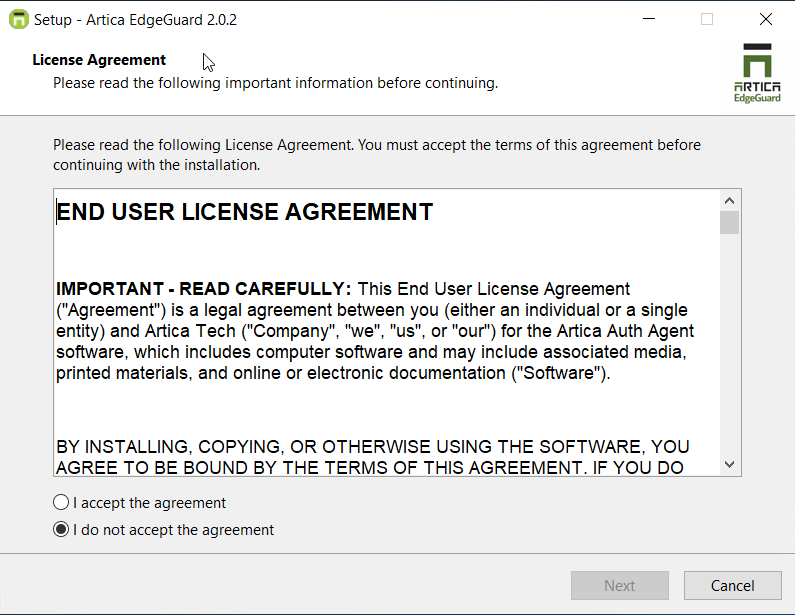
¶ Accept the License Agreement
| Read and accept the End User License Agreement to continue. |
 |
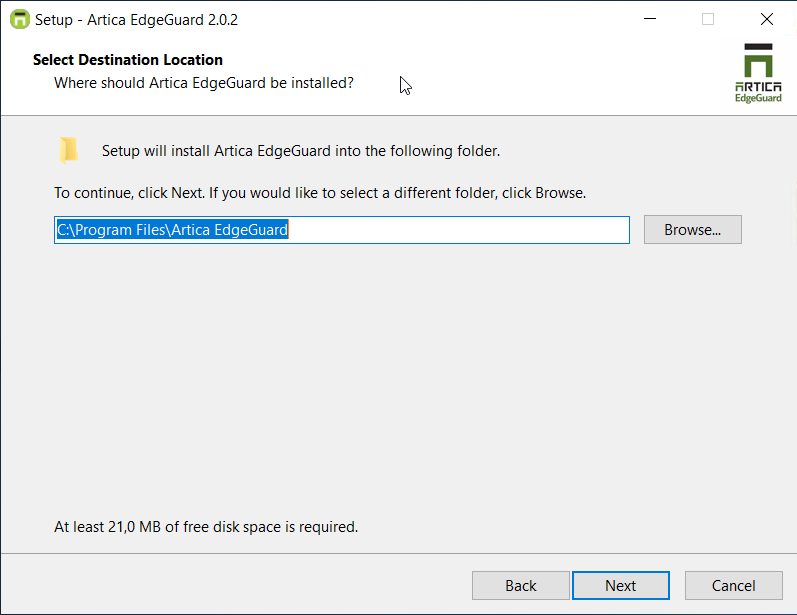
¶ Choose Installation Directory
|
 |
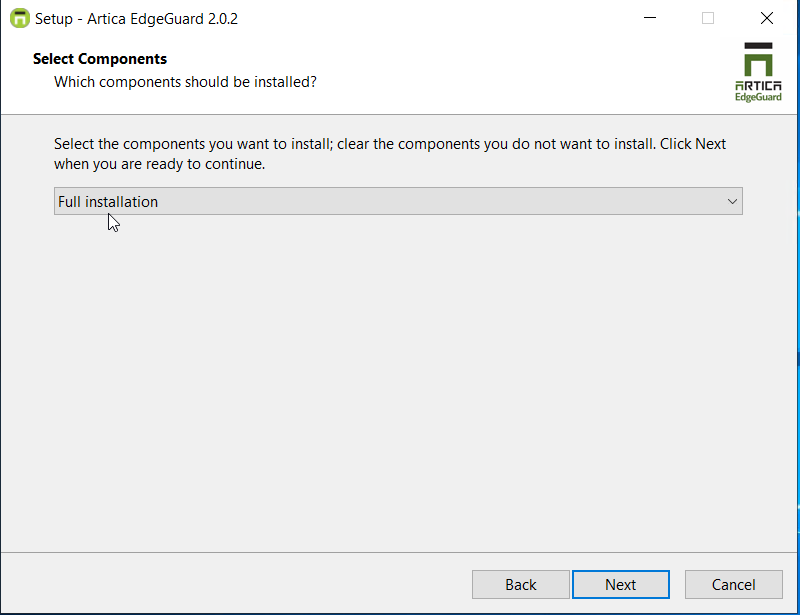
¶ Select Components
|
 |
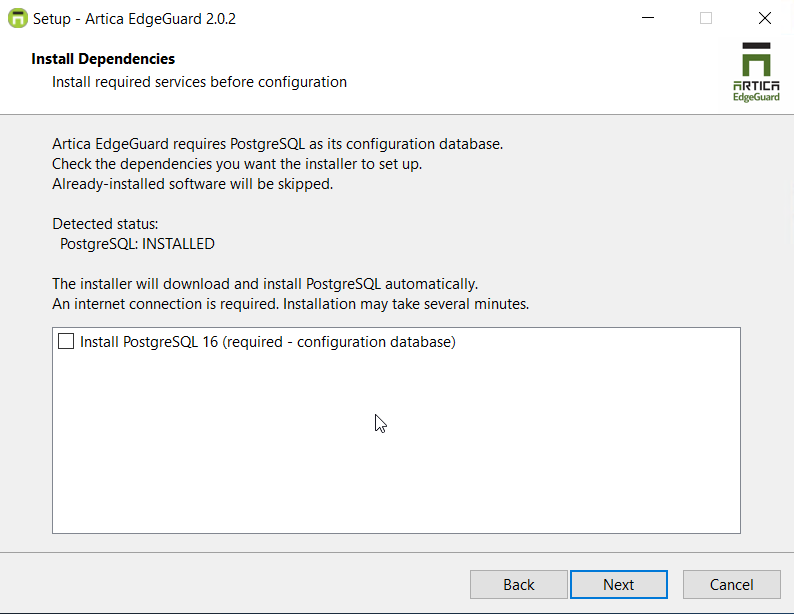
¶ Install Dependencies
|
 |
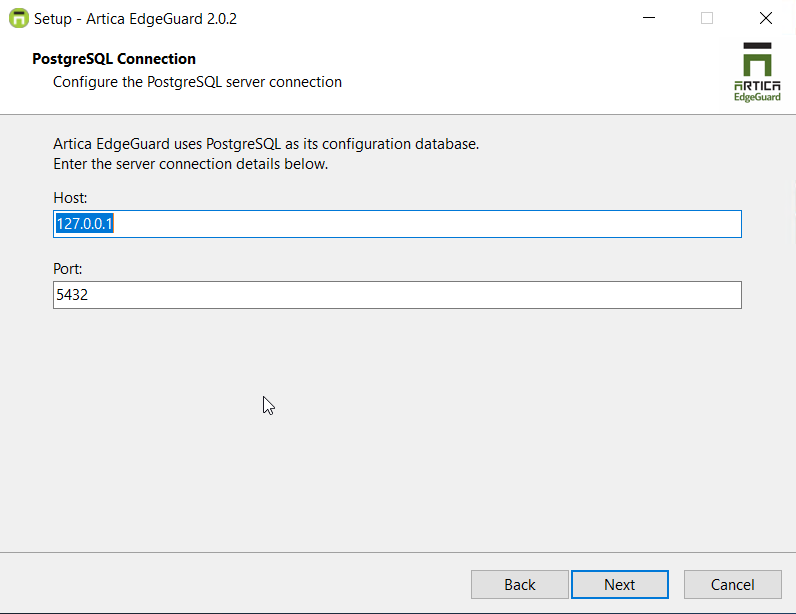
¶ PostgreSQL Connection
|
 |
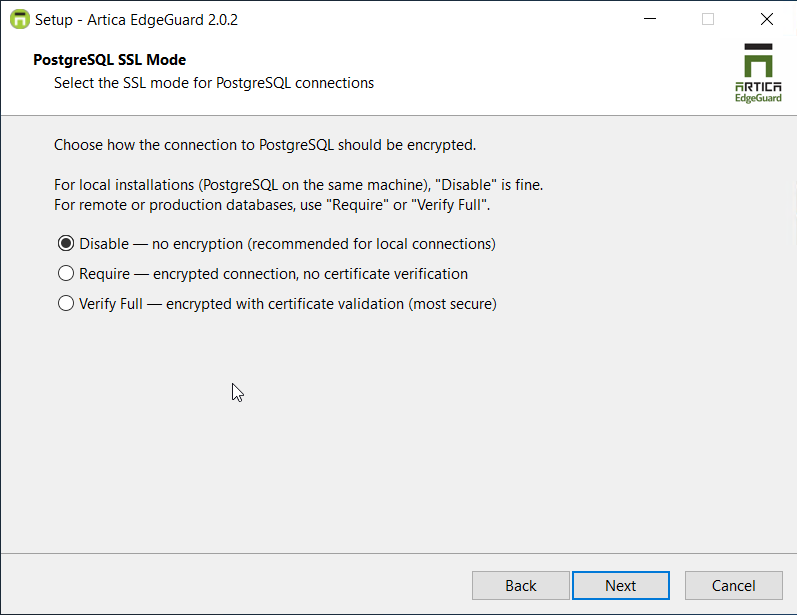
¶ PostgreSQL SSL Mode
|
 |
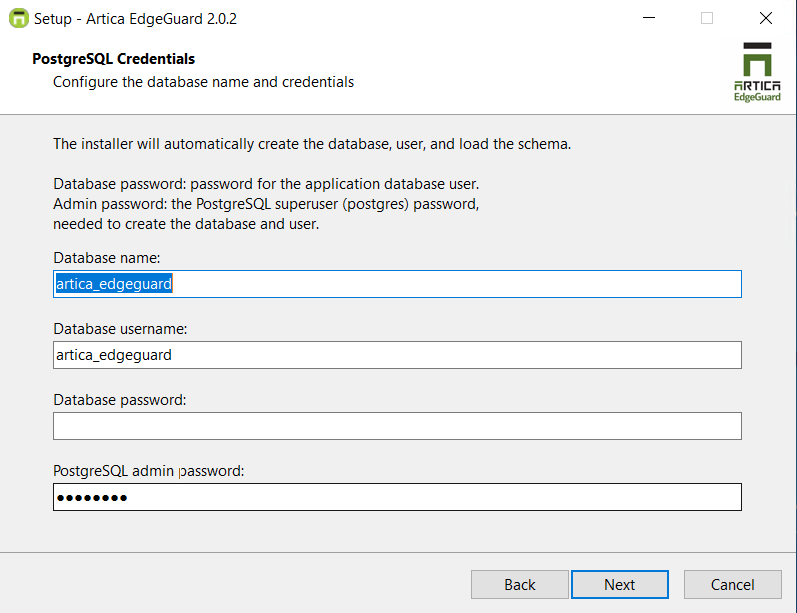
¶ PostgreSQL Credentials
|
 |
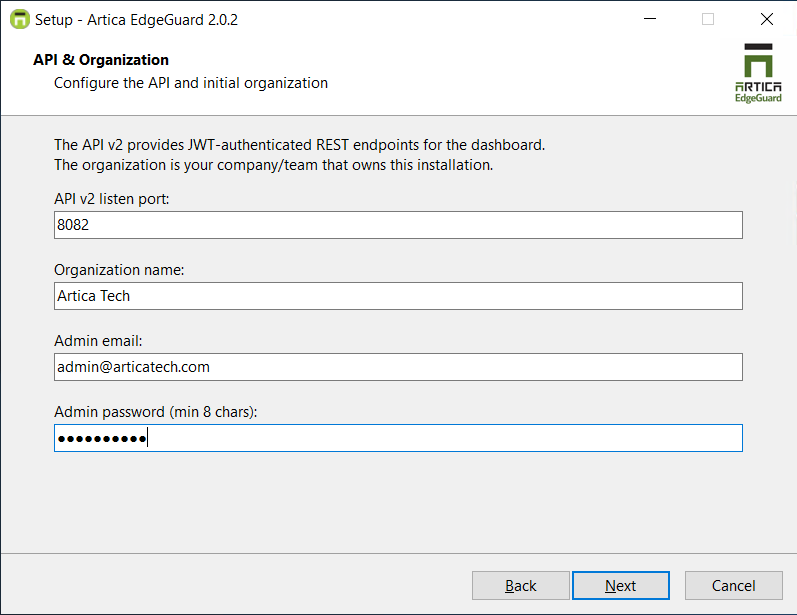
¶ API & Organization
|
 |
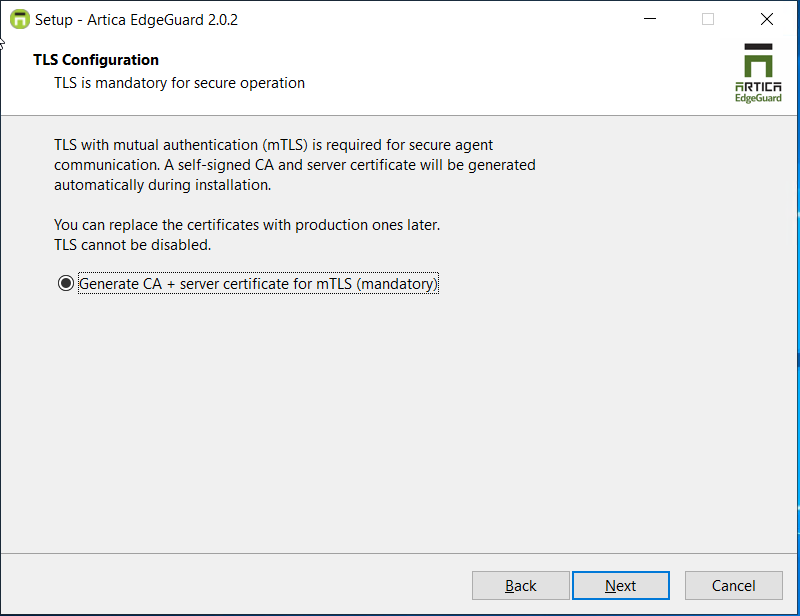
¶ TLS Configuration
|
 |
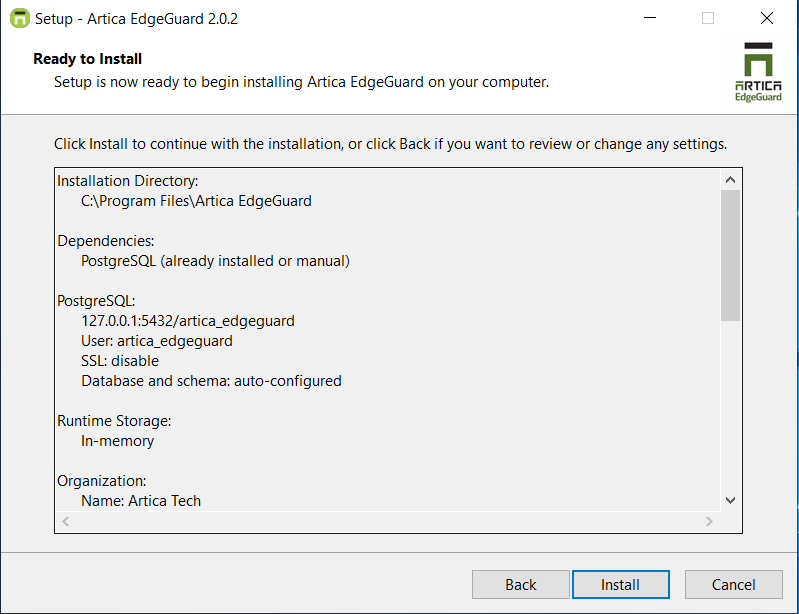
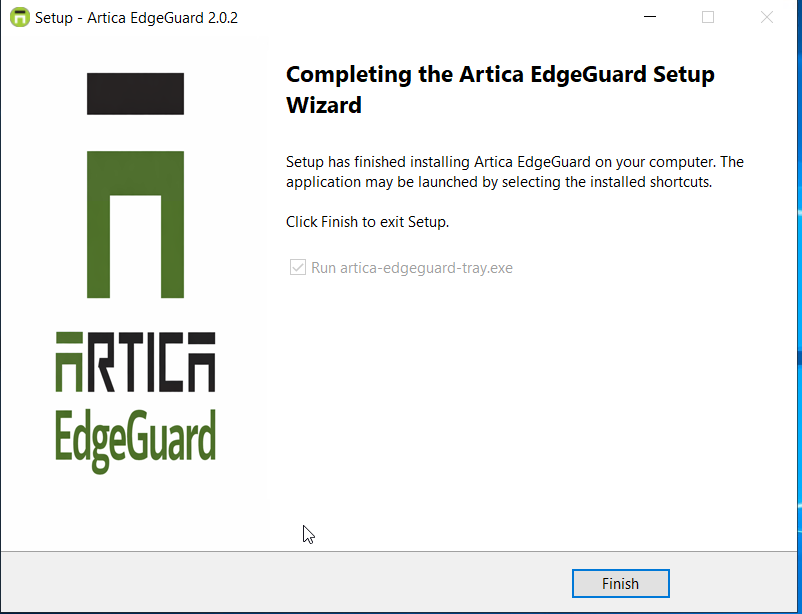
¶ Review & Install
|
 |
 |
¶ Tray Application
The tray application provides a graphical interface for monitoring and managing the central. It runs in the Windows system notification area and starts automatically on Windows login.
¶ System Tray Icon
The tray icon color indicates the agent's current health status:
| Status | Description |
|---|---|
 |
Central is running |
 |
Cannot connect to the central service. |
 |
Initial state while the tray application is checking connectivity. |
¶ Tray Menu
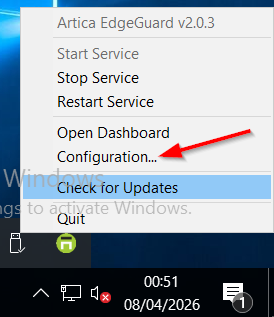
| Right-click the tray icon to access the menu: |
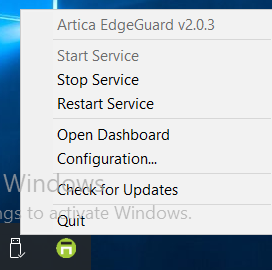 |
- Version information - informational, not clickable
- Start Service - Start Artica EdgeGuard Service
- Stop Service - Stop Artica EdgeGuard Service
- Restart Service - Restart Artica EdgeGuard Service
- Open Dashboard - Open Central Dashboard
- Configuration - Open configuration GUI
- Check for Updates - Check for new Artica EdgeGuard updates
- Exit - Closes the tray application (does not stop the central service)
¶ Configuration
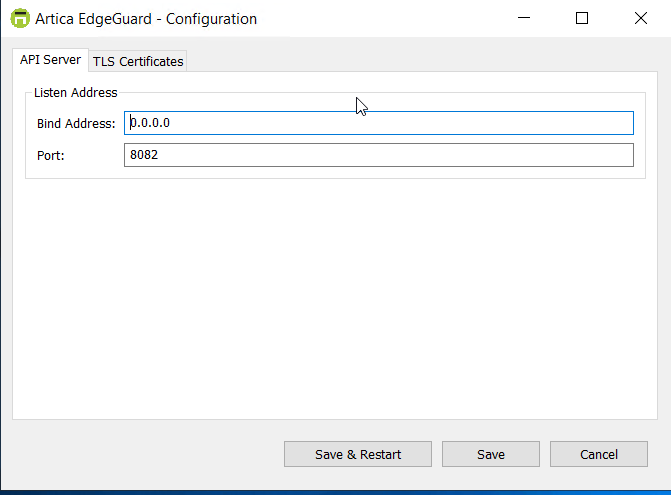
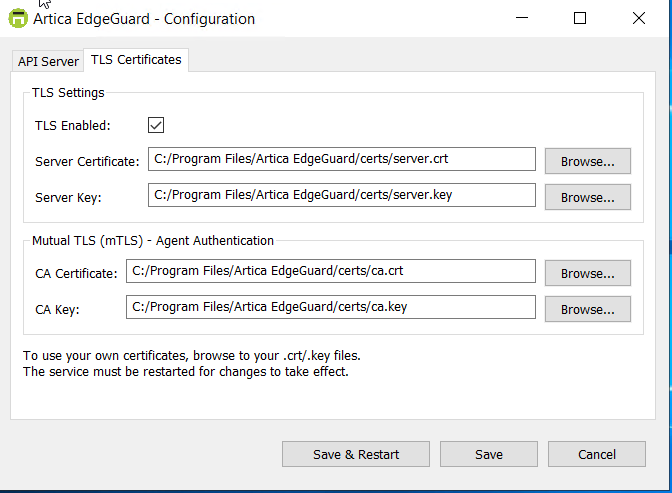
| To override the default port, bind interface, or current CA certificate, open the tray icon and click Configuration. |
 |
¶ Update
| From the tray menu, click Check for Updates. |
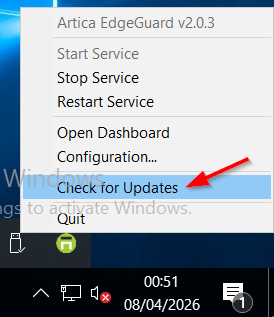 |
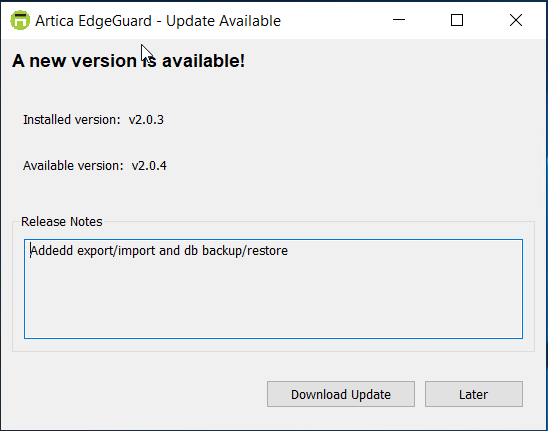
| If a new version is available, you will be prompted to download it. |
 |
| Before the wizard starts, the installer detects the existing service and displays a confirmation dialog: |
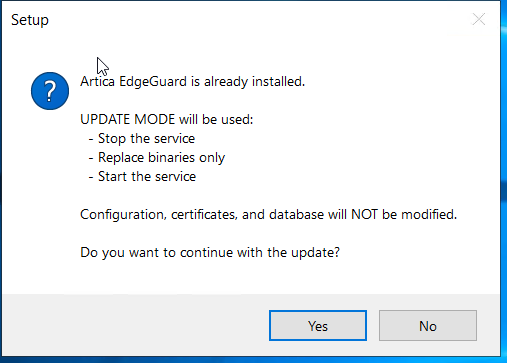 |
The update process only replaces the binaries. All configuration, certificates, service account, and firewall rules are preserved.
Tip: After the update, check the tray icon tooltip or the Dashboard to verify the new version number and confirm the agent is healthy.
¶ Supported Windows versions
| Platform | Versions | Install |
|---|---|---|
| Windows Server | 2016, 2019, 2022, 2025 | artica-edgeguard-setup.exe |
| Windows | 10, 11 | artica-edgeguard-setup.exe |
¶ Architecture Support
| Architecture | APT/DNF | Shell Installer | Windows |
|---|---|---|---|
| x86_64 (amd64) | Yes | Yes | Yes |
| aarch64 (arm64) | — | Yes | — |