Server Migration transfers an entire Artica appliance — its settings, its databases, its logs and its network identity — onto a freshly installed machine.
At the end of the transfer the old server powers itself off, the new one takes over its IP address and hostname, and reboots.
From the network’s point of view, nothing moved.
This feature is available Artica v4.50 Service Pack 8 or Artica v4.50 Service Pack 7 Hotfix 20260727-13
The whole exchange runs over a mutually authenticated TLS tunnel on port 22450.
The destination proves its identity with a certificate package you download from the source, so no password, no shared secret and no open management port are involved.
¶ Why use it
- No reconfiguration.
The destination inherits the source’s IP address, hostname and system identity. Firewall rules, DNS records, client proxy settings and monitoring probes that point at the old appliance keep working untouched.
- Everything comes across.
Configuration, SQLite databases, PostgreSQL and OpenLDAP dumps, Squid, Nginx, Postfix and ufdbGuard trees, plus the retained backups — not just a settings export.
- Short, predictable downtime.
The source stays in production for the whole copy. Service only stops at the very end, for the switchover and one reboot.
- No manual key exchange.
The certificate package carries the source’s address in its own SAN field, so the destination never asks you to type an address, and only a machine holding that package can pull the data.
- Reversible until the last step.
Everything up to the switchover is a read-only copy from the source. If the transfer fails, the source is still running and still serving.
- Resumable.
If the copy succeeded but the switchover did not, you replay the switchover alone — you do not transfer everything again.
¶ When to use it
- Hardware replacement.
Moving to a new physical box, a larger disk or more memory, without rebuilding the configuration by hand.
- Operating system upgrade.
Install the current Artica release on a recent Debian, then pull the old appliance into it.
This is the supported path to a newer base system: you do not upgrade Debian under a running appliance, you migrate onto a clean one.
- Physical to virtual, or the reverse.
The destination only needs network access to the source on port 22450.
- Datacenter or hypervisor move
where the appliance must keep its address.
- Recovering a machine you no longer trust
A failing disk, an unstable filesystem — by transplanting its configuration onto healthy hardware.
It is not a backup tool and not a high-availability mechanism.
It is a one-shot, one-way move: the source is powered off at the end, and the destination is completely overwritten.
¶ Before you start
- The destination must be a freshly installed Artica appliance. Everything on it is destroyed — this is the point of the operation, not a side effect.
- Both machines must run a version of Artica that includes the migration module, and the destination must reach the source on TCP 22450.
- Run both appliances at the same Artica version where you can. A version difference is reported but not blocked.
- Give the destination a temporary IP address, different from the source’s. It only needs it until the switchover.
- Plan the reboot. The destination restarts at the end, and that is when the new configuration takes effect.
The migration is irreversible.
The destination is overwritten, the source is powered off, and the destination reboots holding the source’s identity. There is no undo.
¶ Step 1 — On the source server: publish the appliance
Open Your system > Backup > Server Migration and click Enable Server Migration.
The appliance opens its mTLS listener and generates the certificate package that the destination will need.
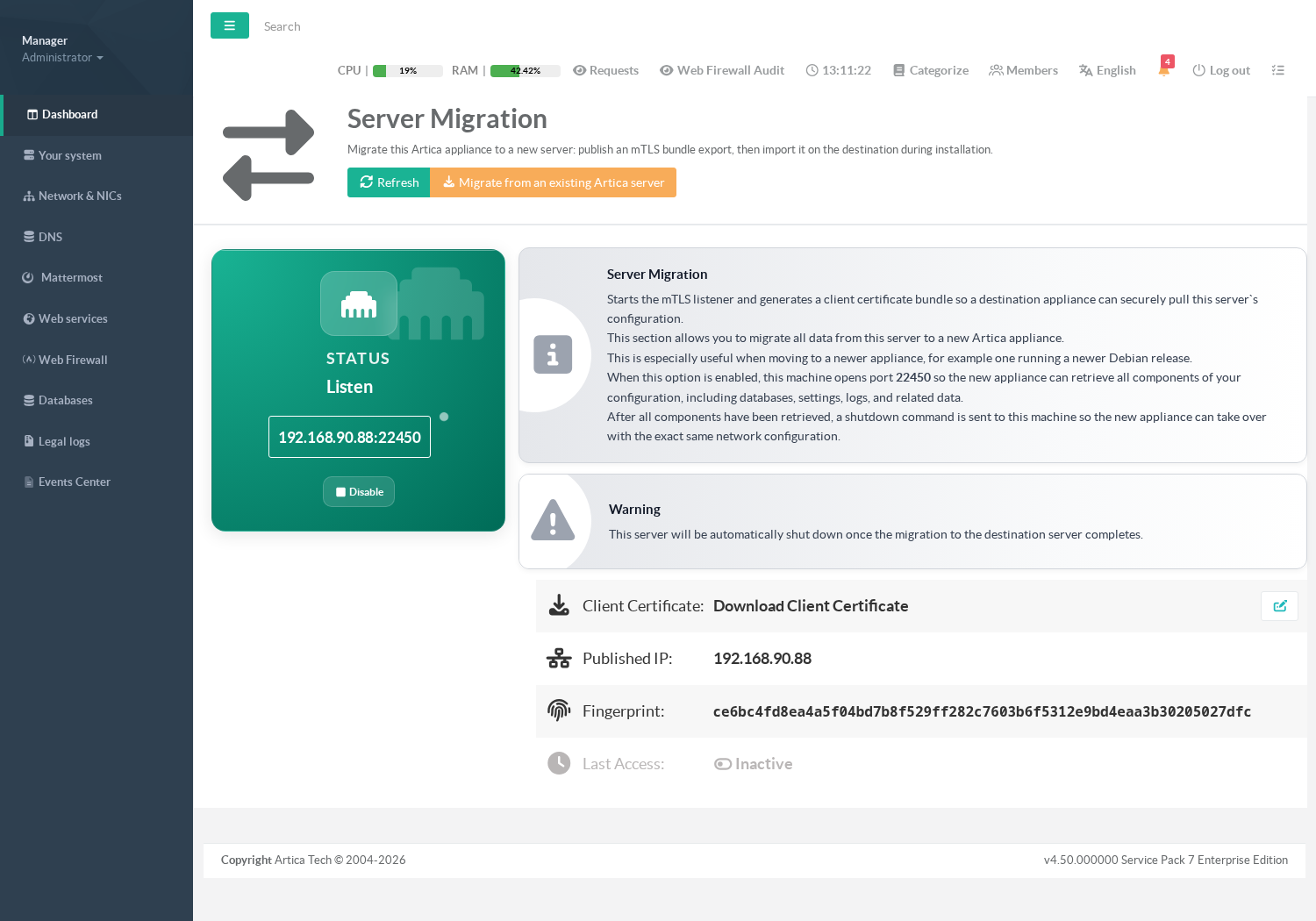
Once enabled, the page reports:
- Status — Listen with the published address and port, here 192.168.90.88:22450. This is what the destination will connect to.
- Client Certificate — click Download Client Certificate to get
client.gz. Keep it: it is the only thing the destination needs. - Published IP — the address written into the certificate, and the address the destination will adopt.
- Fingerprint — the certificate’s SHA-256 fingerprint. Note it down if you want to confirm on the destination that you are pulling from the machine you think you are.
- Last Access — shows when a destination last connected, so you can tell whether the transfer has begun.
The warning on this page is worth reading:
this server will be automatically shut down once the migration to the destination server completes.
That shutdown is what makes it safe for the destination to take the address.
Leave the service enabled for the whole operation. Disabling it stops the listener and deletes the package, so a package downloaded earlier stops working.
¶ Step 2 — On the destination: open the migration wizard
On the newly installed appliance, open the same Server Migration page.
Its own service is left Inactive — a machine is either a source or a destination, never both.
Click Migrate from an existing Artica server in the page header.
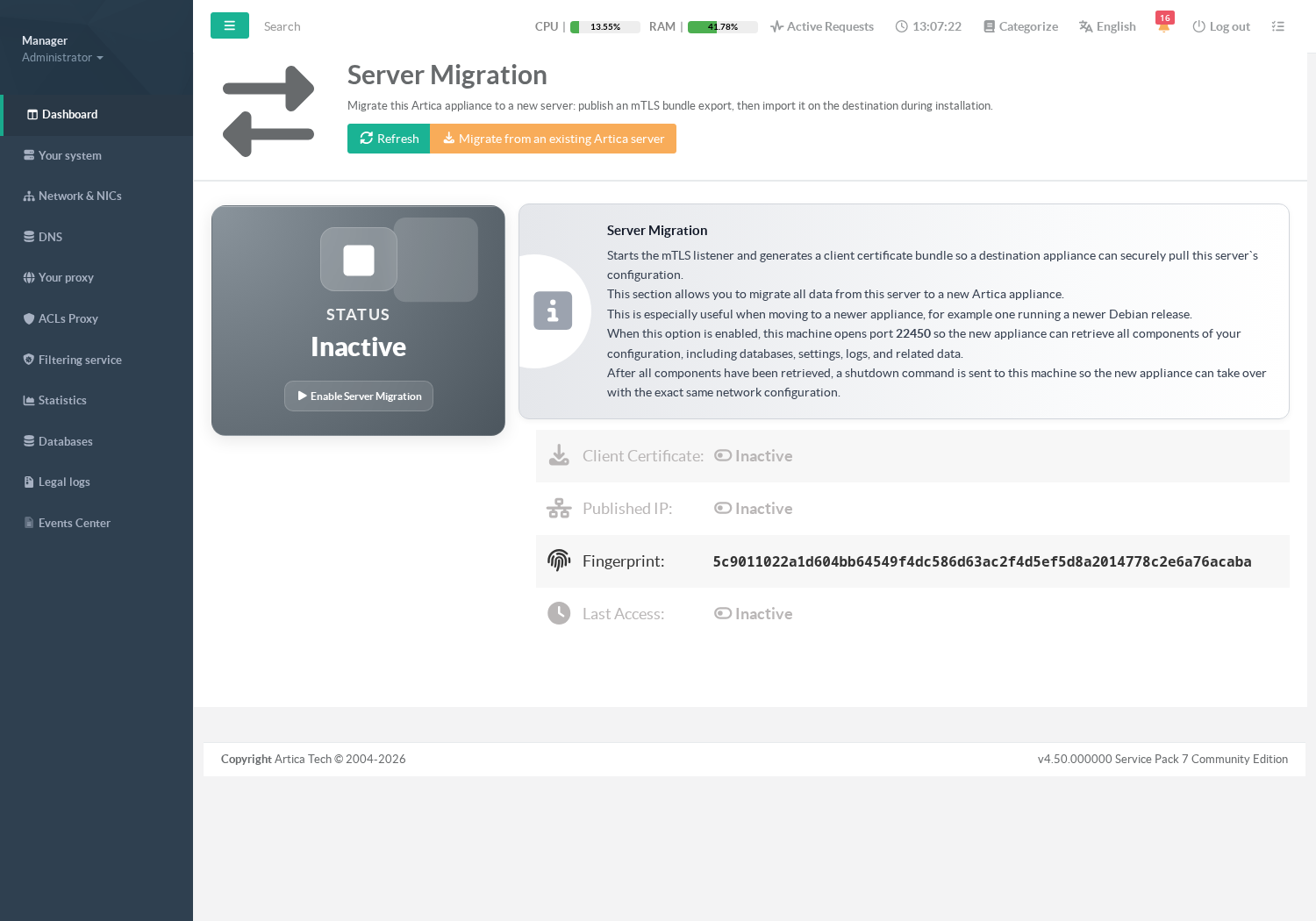
A three-step wizard opens: certificate package, network settings, replication.
¶ 2.1 — Import the certificate package
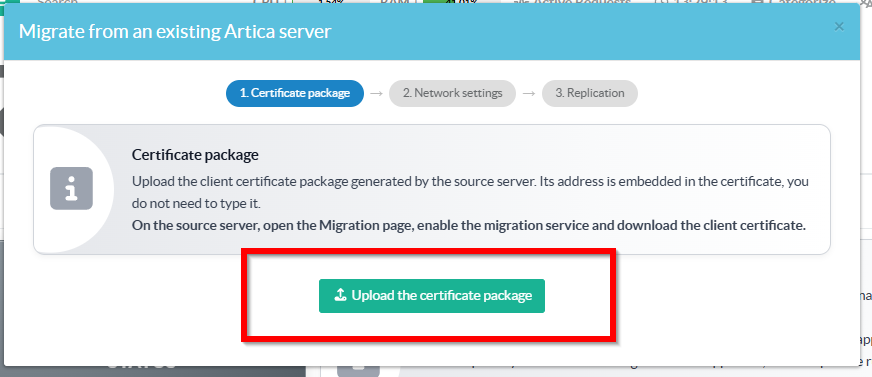
Upload the client.gz you downloaded from the source.
You are never asked for the source’s address: it is embedded in the certificate and read from there.
On upload, the destination installs the package and immediately opens a test connection to the source.
Two kinds of failure are reported differently, and the distinction tells you where to look:
- a message prefixed import:
means the package itself was rejected — wrong file, truncated download, or a package from a service that has since been disabled;
- a message prefixed connexion:
means the package is valid but the source did not answer — check that the service is still enabled on the source and that port 22450 is reachable.
¶ 2.2 — Review the network settings
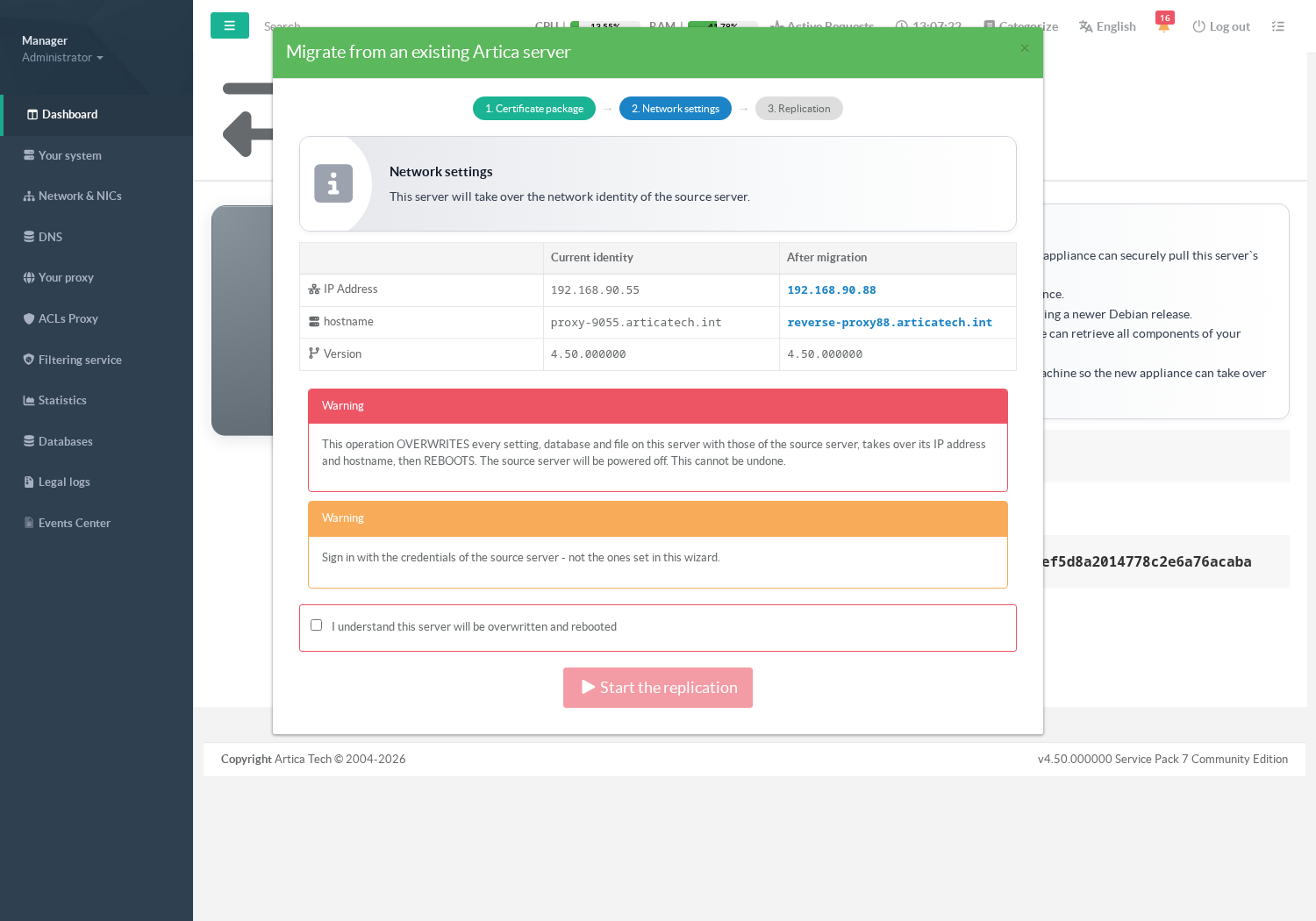
This screen is the point of no return, and it is deliberately read-only: the destination always adopts the source’s identity, so there is nothing to choose. Check the comparison carefully:
- IP Address — what this machine answers on today, and what it will answer on afterwards.
- hostname — likewise. The destination takes the source’s name.
- Version — if the two differ, an additional notice appears. It is informational and does not block the migration.
Two warnings are shown, and both matter:
- the operation overwrites every setting, database and file on this server, takes over the source’s address and hostname, then reboots;
- the credentials change too. After the migration you sign in with the accounts of the source server — not the password you have just set on this one. This is the single most common surprise: without it, administrators believe they have locked themselves out.
Tick I understand this server will be overwritten and rebooted. Only then does Start the replication become clickable.
¶ 2.3 — Watch the replication
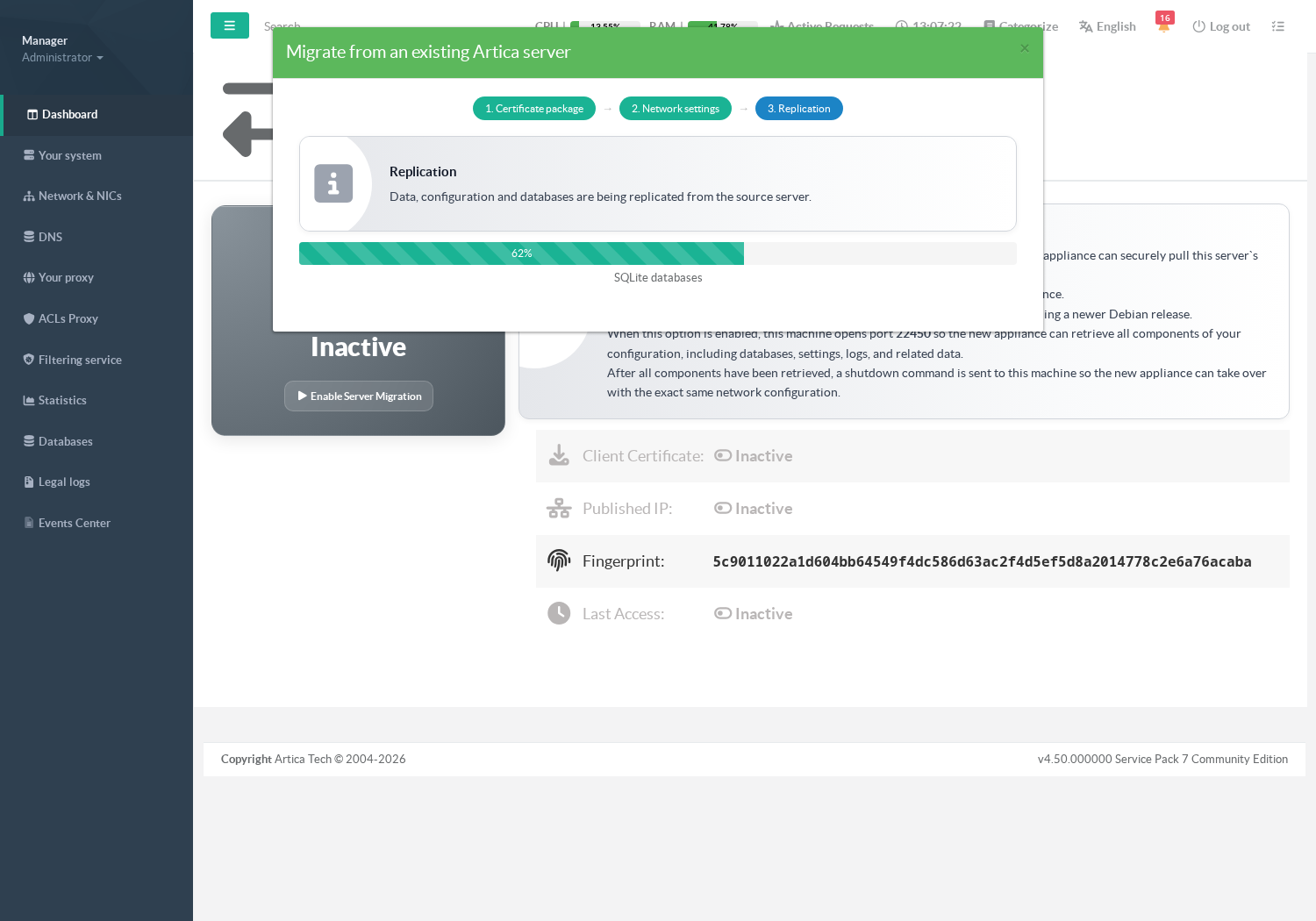
The progress bar names the component being copied, so you can see where the time goes. The order is fixed:
- Settings, then the configuration components (Squid, Nginx, Postfix, ufdbGuard…);
- The Artica data directory — usually the longest phase;
- The SQLite databases, then the retained backups;
- The PostgreSQL and OpenLDAP dumps, when those services are active on the source;
- The network switchover plan;
- The shutdown request to the source, then the wait for it to actually go down;
- The switchover itself and the reboot.
From 90% the page shows the address you will need to reconnect on, together with the reminder about credentials. Read it before it disappears: the switchover changes this machine’s address and then reboots it, so the page you are watching stops answering. That is expected, and it is why the address is shown early.
Once the destination is back up, reconnect on https://<source-address>:9000 using the source server’s credentials.
¶ If something goes wrong
A failure does not leave you without options, and which option is right depends on how far the migration had gone. The wizard works that out for you and offers only the sensible action.
¶ The transfer failed
If the failure happened while data was still being copied, the destination is simply incomplete and the source is untouched and still running. The wizard offers Retry, which restarts the transfer from the beginning. This is safe: the import overwrites as it goes.
¶ The transfer succeeded but the switchover did not
This is the case worth understanding.
If the failure happened at the shutdown, the wait, the switchover or the finalisation step, then all the data is already on the destination.
Only the network identity change did not complete.
Retrying the whole transfer would be a waste of time, and would fail anyway because the source is already shutting down.
The wizard therefore offers Apply network settings, which replays only the switchover.
Three outcomes:
- Applied
The machine takes the new address and reboots.
- The source server is still answering
Power the source off manually, then retry.
The appliance refuses to take an address that is still in use; this guard is what prevents an address conflict.
- No switchover plan was saved
There is nothing to replay, because the migration never reached the stage where the plan is written.
¶ The page stops answering near the end
Expected. Past the switchover the appliance is on a different address and rebooting, so the page you are on cannot answer any more.
Reconnect on the new address.
¶ Checking from the command line
On the destination, over SSH, the daemon reports its own view of the migration:
curl -s --unix-socket /usr/share/artica-postfix/bin/run/articarest.sock http://localhost/migration/client/status
The reply gives the state, the step reached, the percentage and the target address.
On the source, the same call to /migration/server/status shows whether the listener is up and when a destination last connected.
¶ Migrating during the installation wizard
You do not have to finish configuring the destination before migrating — and there is little point, since whatever you configure will be overwritten.
On a freshly installed appliance, the installation wizard offers Migrate from an existing server directly in its navigation bar, opening the same three steps.
Taking that route, you go from a blank appliance to a full replacement of the old one without ever configuring the new machine by hand.
The installation wizard closes by itself once the migration completes.
¶ Good practice
- Take a backup of the source before you start.
The migration reads it without modifying it, but a machine about to be powered off deserves a backup anyway.
- Do the migration in a maintenance window:
The source is powered off at the end and the destination reboots.
- Note the certificate fingerprint on the source:
And compare it on the destination if the two machines sit on an untrusted network.
- Keep both machines on the same subnet where you can.
The destination must reach the source on 22450, and it will then take the source’s address.
- Do not power the source off by hand before the transfer finishes
The destination is still reading from it. The migration shuts it down at the right moment.
- Once the destination is up and verified, keep the source powered off.
Two appliances with the same address on the same network will conflict.